Cargo Finance guide
All screens and videos show a test company with made-up names and numbers.
On this page
- What Cargo Finance is
- How to sign in
- Main screens
- How to do it
- Find and filter loads ▶
- Mark drivers paid for loads ▶
- Review, edit, and audit a load ▶
- Generate, review, and send statements ▶
- Manage a Unit and its weekly setup ▶
- Set up commission templates ▶
- Share a load between two dispatchers ▶
- Set up dispatcher pay ▶
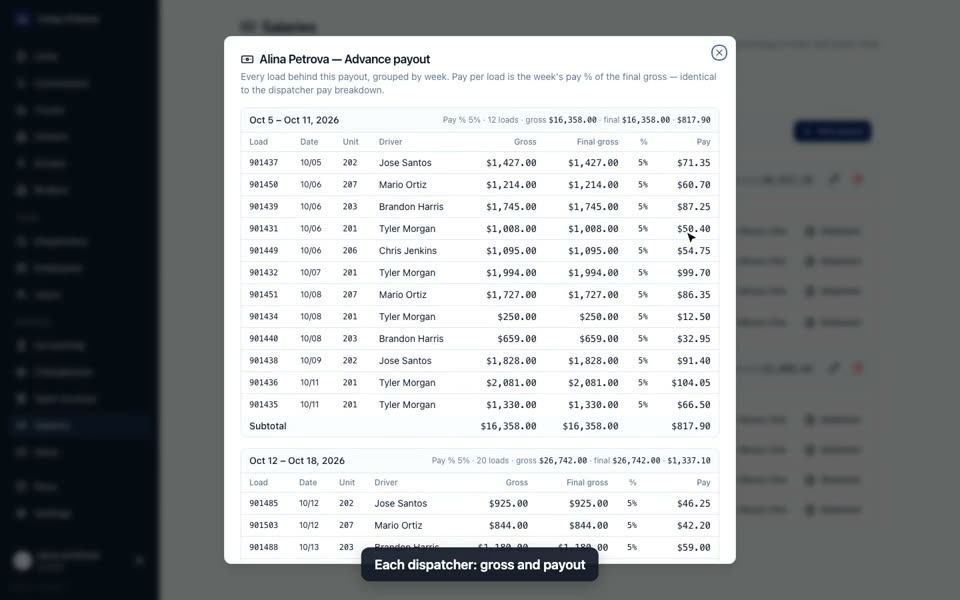
- Create a dispatcher payout ▶
- Track an open invoice ▶
- Track a broker chargeback ▶
- Read the weekly numbers on the Dashboard ▶
- Download the NetSuite CSV ▶
- Manage company details and users ▶
- Record fee collections and transfers
- Manage owners, drivers, trucks, and brokers
- Handle statement replies in Inbox
- Find help in Docs
- FAQ
- Why don't I see a page a coworker has?
- Does "Paid" mean the broker paid us?
- Does Mark paid update Quick Pay in CargoETL?
- Why is Owner profit different from LoL's Profit?
- Why did every load of a unit change commission after one edit?
- What does a closed week mean?
- Where do loads come from? Can I create one here?
- A load disappeared. Where is it?
- Are load codes the same as in LoL?
- Can I see who changed a number?
- All videos (15)
What Cargo Finance is
Cargo Finance is the accounting back office for a trucking company. CargoETL stays the place where dispatch creates and updates loads. Every load comes into Cargo Finance on its own, and here the office does the money work around it:
- checks each load's gross, driver pay, commission and owner profit;
- marks drivers paid and handles Quick Pay loads;
- builds a weekly statement PDF for each unit and emails it to the owner and driver;
- pays dispatchers and office staff;
- tracks what brokers still owe (open invoices) and short-pays (chargebacks);
- shows weekly numbers to check against NetSuite.
Who uses it: the owner or manager (role Admin), the accountant (Accountant), dispatchers who work on loads (Dispatcher), and people who only look things up (Assistant, Viewer).
Cargo Finance has its own built-in help: Docs at the bottom of the sidebar. This guide is the short route through the program, with a video for each task. For the full details of a task, open the article named under it: "In Cargo Finance: Docs →
How to sign in
- Open your company's address,
https://<your-company>.cargo-finance.com. - Enter your Login and Password, then select Sign in.
- Your login is created by your company administrator on the Users page. The role they give you decides which pages you see.
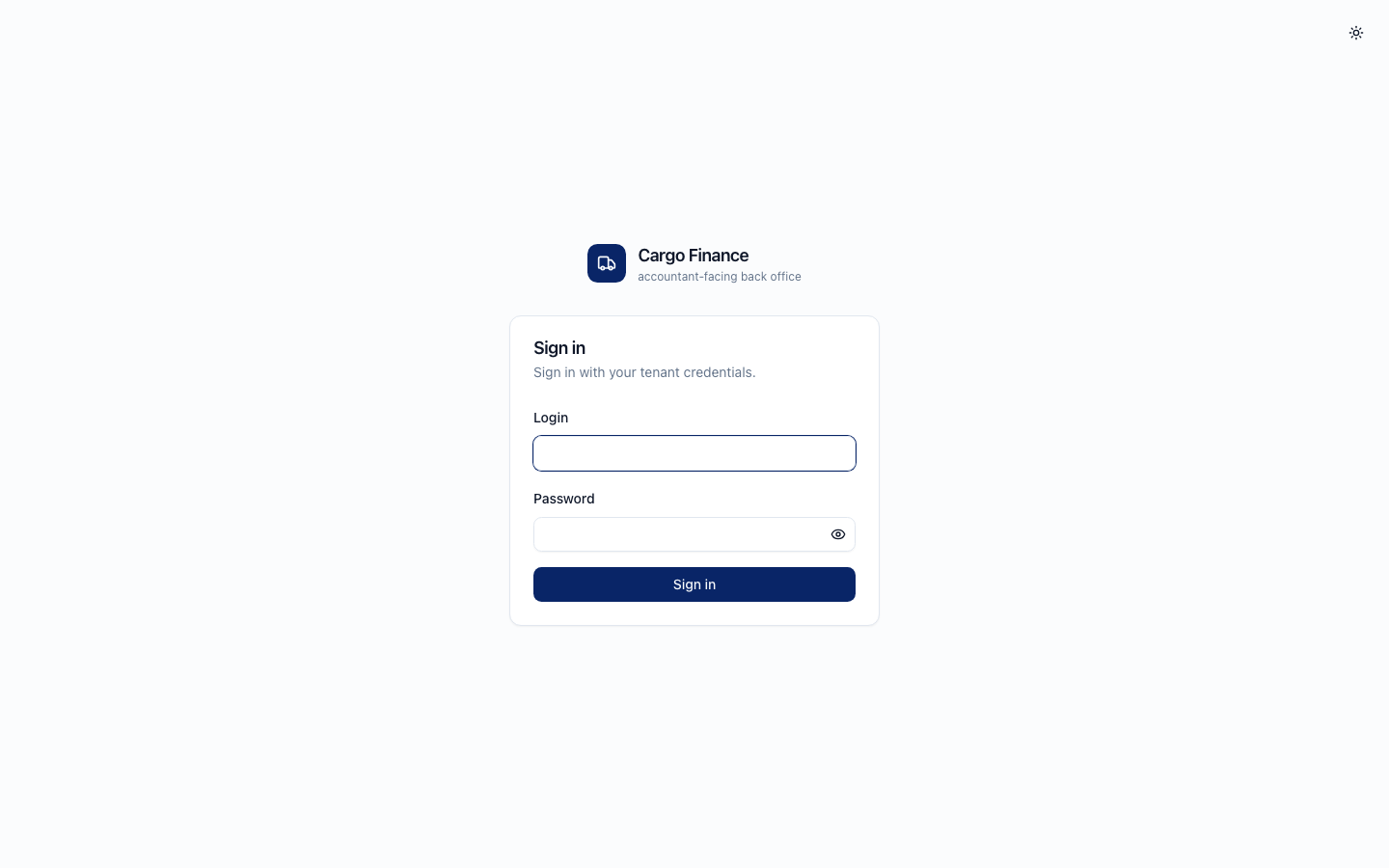
If you forget your password, ask your administrator to set a new one (Users → Force-set password). In Cargo Finance: Docs → Reset your password.
Main screens
The sidebar is grouped the same way for everyone, but it shows only the pages your role and your company's features allow.
| Sidebar | Page | What it is for |
|---|---|---|
| Dashboard | Weekly numbers: loads, gross, driver pay, commission, margin. Breakdowns and queues that need attention | |
| Loads | Loads | All loads for one week. Money columns, filters, bulk actions (Mark paid, factoring, archive), Export to NetSuite CSV |
| Loads | Statements | One PDF per unit per week, with owner and driver pages. Review and email |
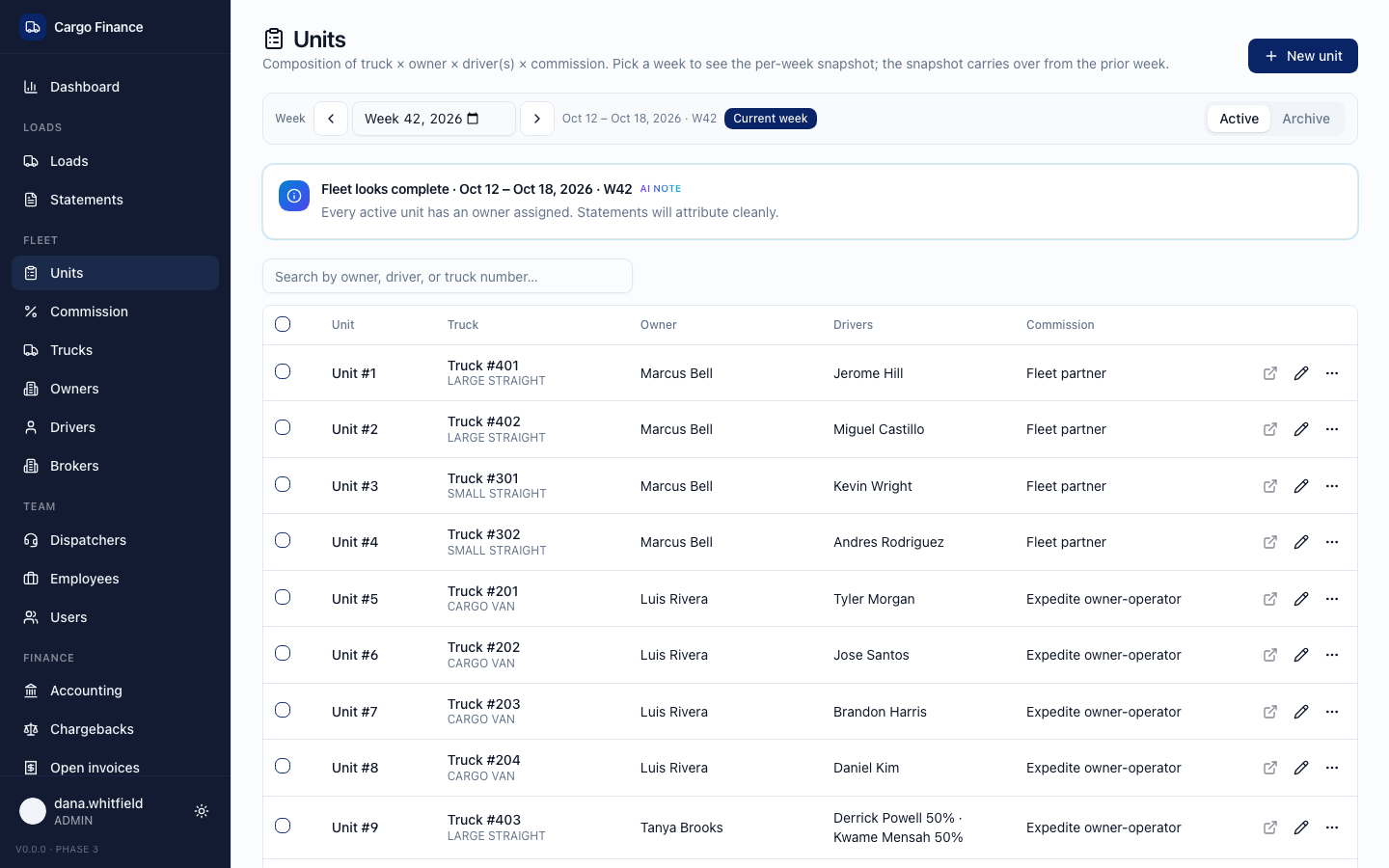
| Fleet | Units | A unit joins a truck, an owner, its drivers and a commission. Weekly setup and fees |
| Fleet | Commission | Commission templates and the weekly commission report |
| Fleet | Trucks, Owners, Drivers, Brokers | The records loads are linked to |
| Team | Dispatchers | Dispatcher pay percent, tied units, pay breakdown, shared loads |
| Team | Employees | Office staff with a fixed monthly salary |
| Team | Users | People who can sign in and their roles (admins only) |
| Finance | Accounting | Pass-through fees (Admin fee, Insurance, Trailer rent): collected from owners, sent to providers |
| Finance | Chargebacks | Broker short-pays after factoring |
| Finance | Open invoices | Brokers you billed directly and are waiting on |
| Finance | Salaries | Twice-a-month payouts for dispatchers and employees |
| Finance | Inbox | Shared email: replies to statements and other conversations |
| Docs | Built-in help articles, searchable | |
| Settings | Company info, driver pay source, load numbers, statement email |
How to do it
Find and filter loads
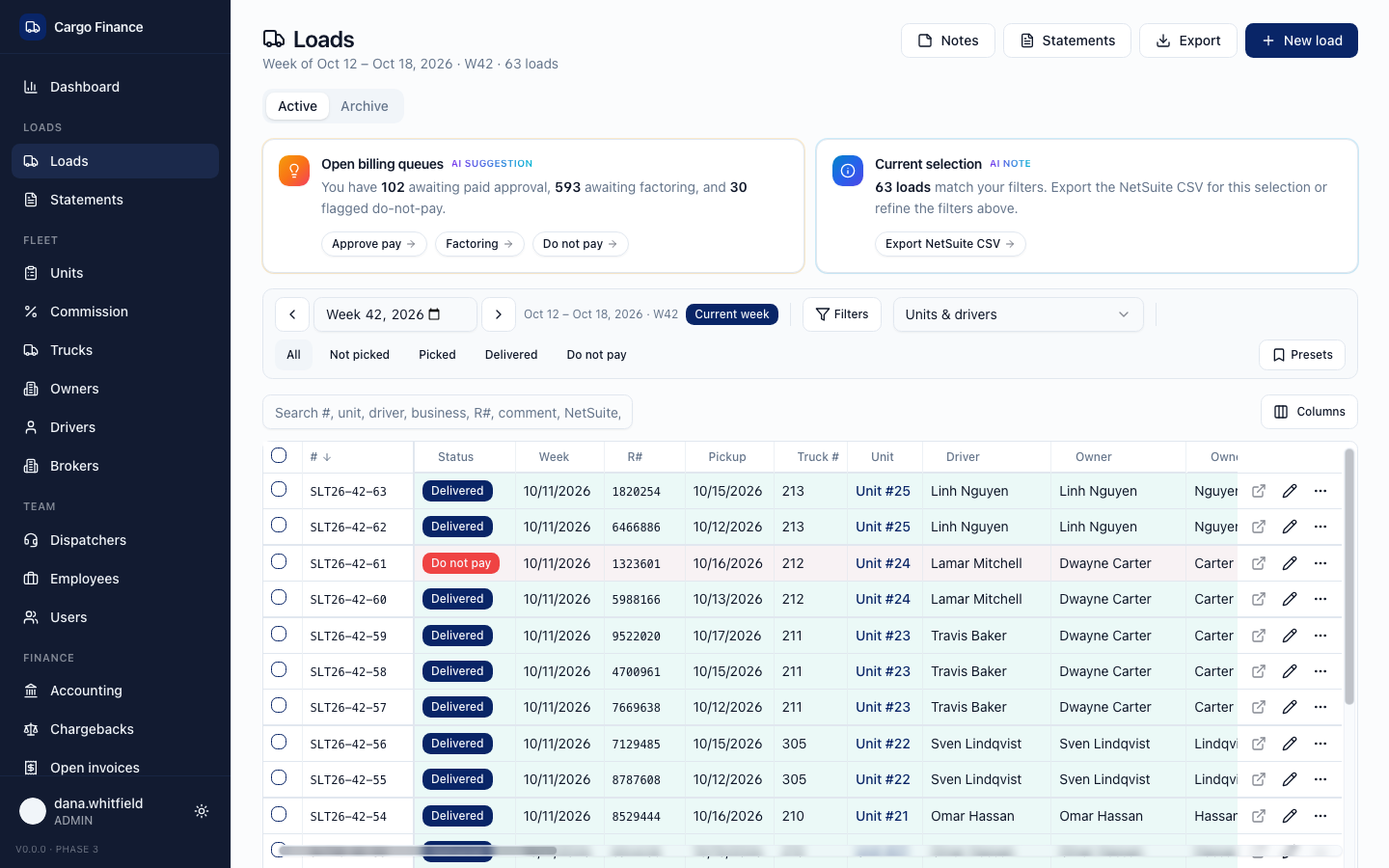
- Open Loads. The page shows one week; move with the arrows beside the week or pick a week.
- Use the status buttons (All, Not picked, Picked, Delivered, Do not pay) or Filters for dispatcher, broker, driver, unit, owner, route, dates, billing flags and amounts.
- Type a load number or R# in Search. Search works inside the chosen week and the Active or Archive tab.
- Table view → No grouping gives one flat table, like LoL. Click a column header to sort; click again to reverse.
- Columns hides, shows, reorders and pins columns. Cargo Finance remembers your layout in this browser.
- Loads deleted in CargoETL or LoL are in the Archive tab. To bring one back: ⋯ → Restore.
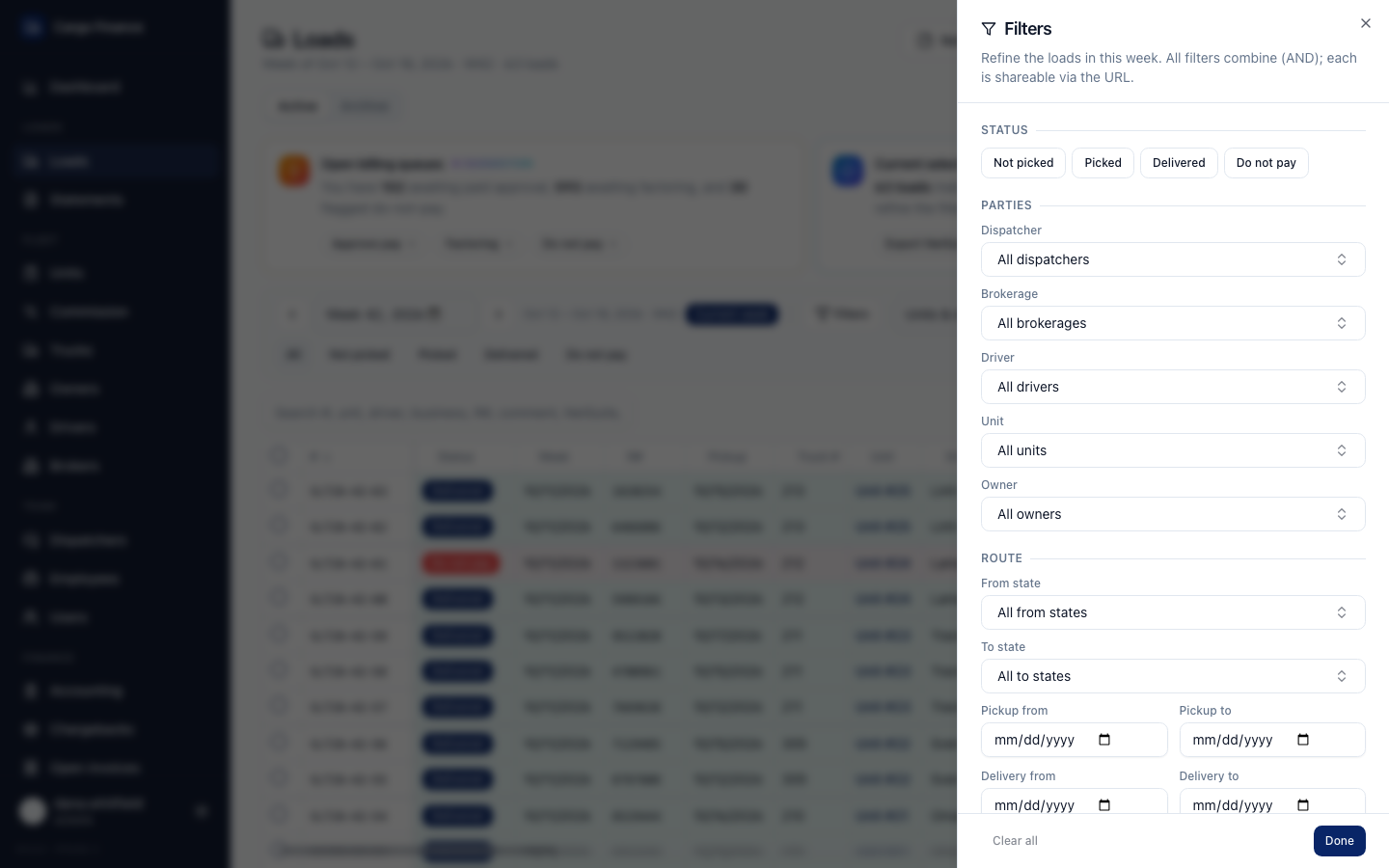
In Cargo Finance: Docs → Find and filter loads.
Mark drivers paid for loads
- Open Loads and pick the week you are paying.
- Filters → Billing → Paid: No. Here Paid means the driver was paid, not that the broker paid you.
- To handle Quick Pay loads first, also set Quick pay: Yes. Select Done.
- Tick the loads you paid. The bar above the table shows how many are selected.
- Select Mark paid. A load marked by mistake: select it and use Unmark paid.
Paid is saved only in Cargo Finance. It does not change the Quick Pay status in CargoETL, so update it there if your team uses it. The Approve pay link in the Open billing queues card opens the same unpaid list across all weeks.
In Cargo Finance: Docs → Mark drivers paid for loads.
Review, edit, and audit a load
- Hover an underlined total (Final gross, Final driver, Commission, Total ded., Owner profit) to see what went into it.
- Click a cell to change it, for example Lumper, Driver salary, Driver exp., Driver bonus or Commission, then Save. The totals update at once.
- For bigger changes select the pencil (Edit load): status, unit, driver, owner, broker, dispatcher, route, week.
- ⋯ → Change history shows who changed what and when, with old and new values.
Gross, driver cost, miles and route come from CargoETL. Fix them in CargoETL when you can: a later CargoETL update can replace a value edited only here.
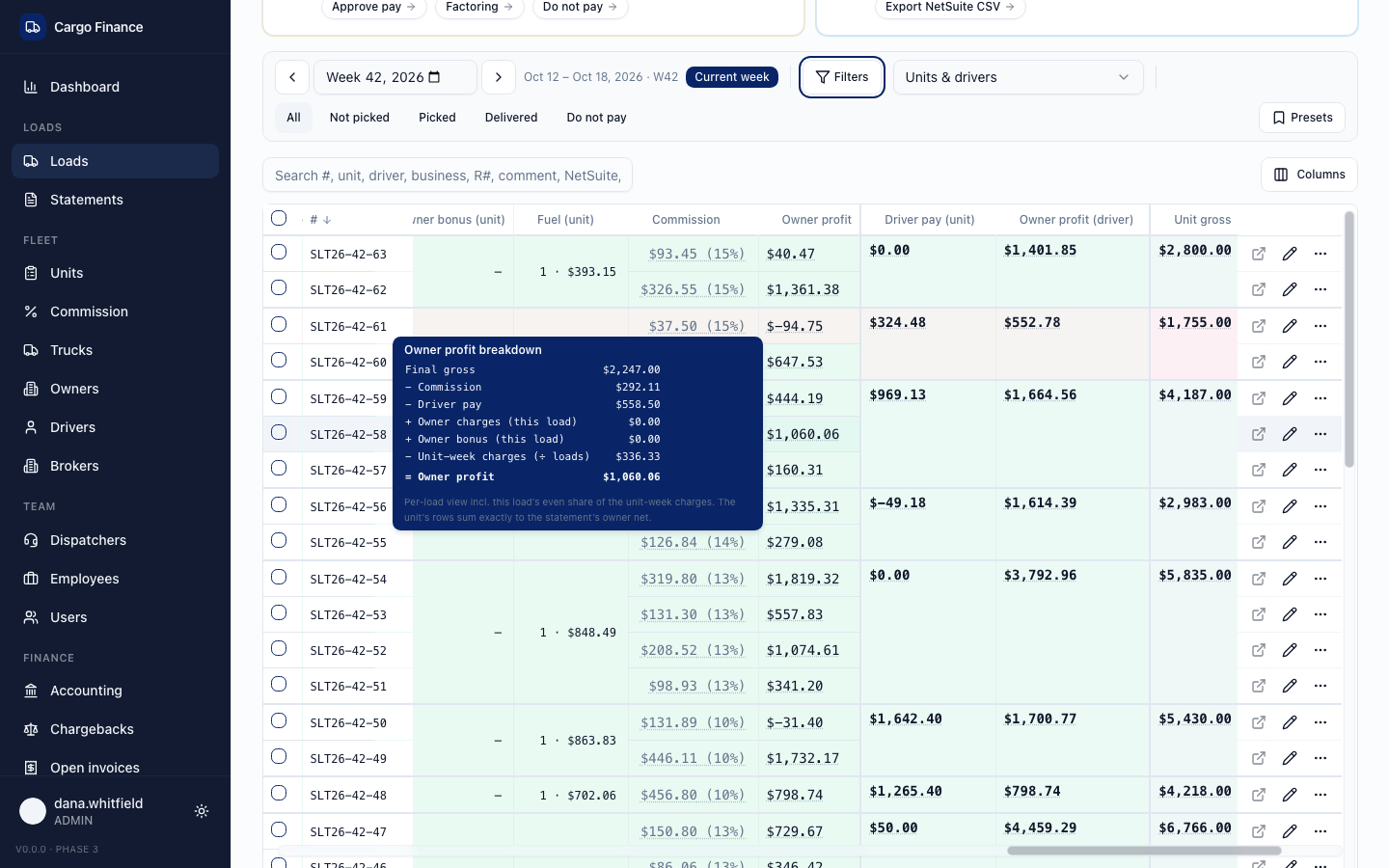
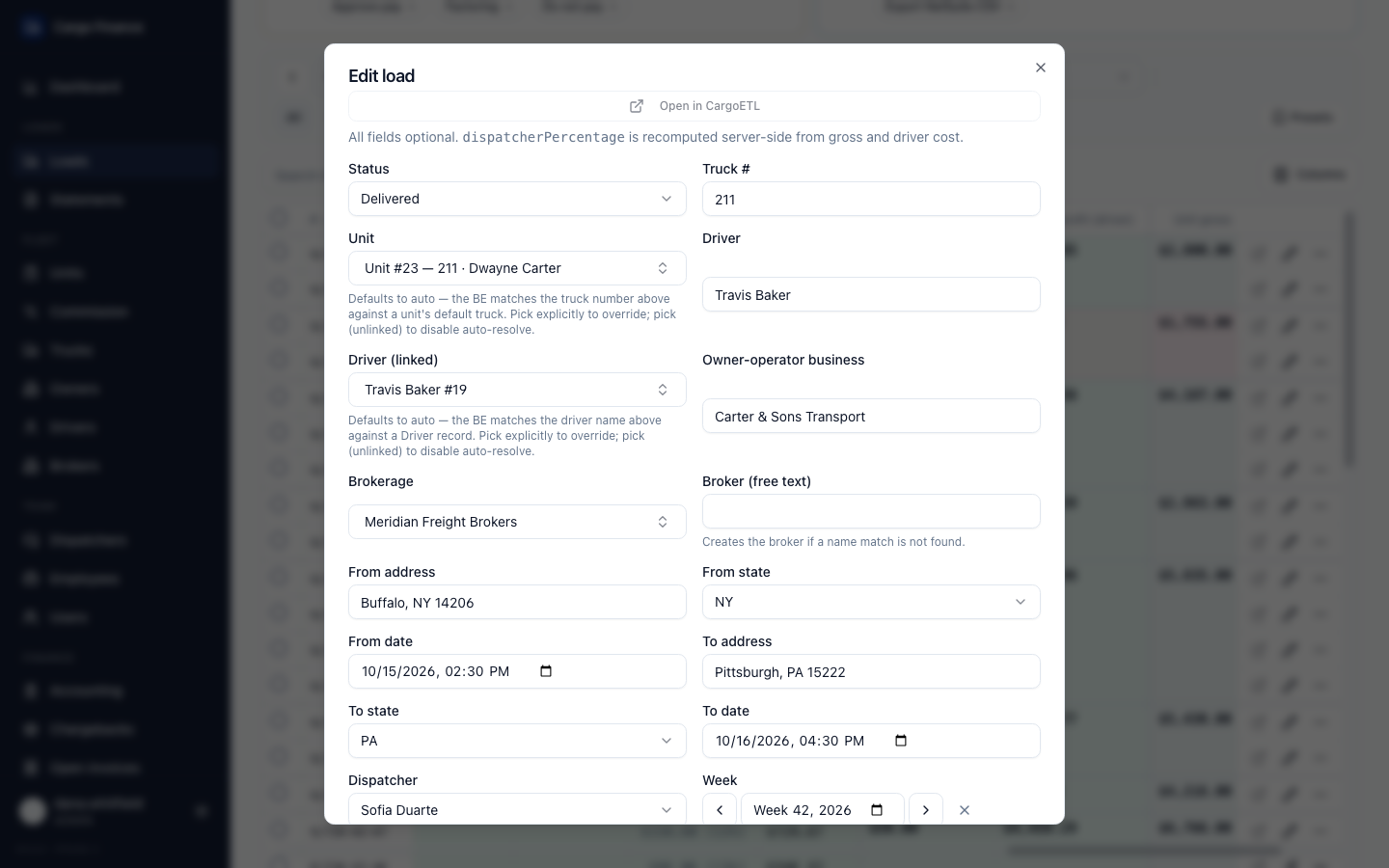
In Cargo Finance: Docs → Review, edit, and audit a load; Docs → Understand the money columns on Loads.
Generate, review, and send statements
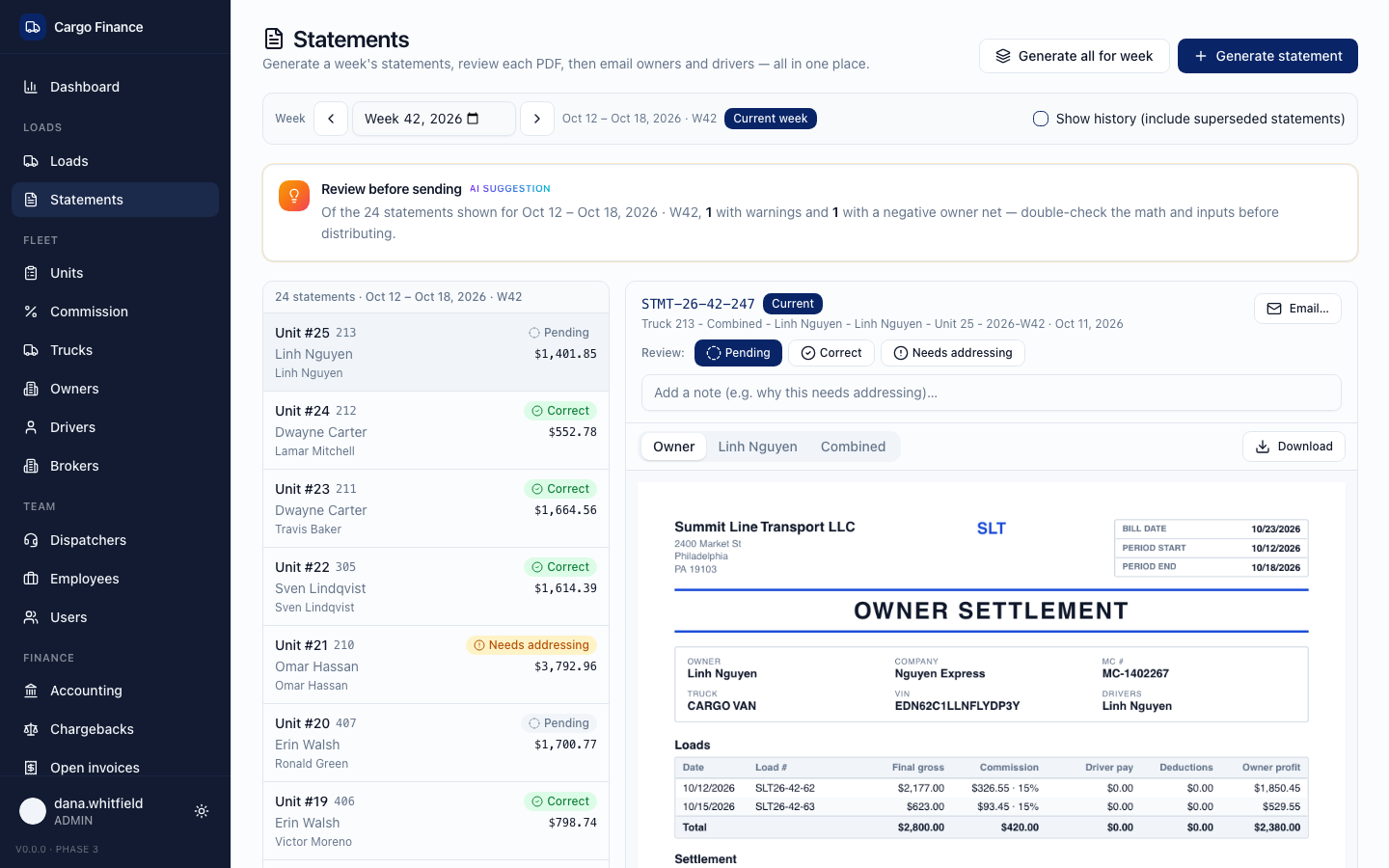
- Open Statements and pick the week.
- Select Generate all for week, keep Payment filter: All loads (or choose a narrower one) and start. Each unit appears as it finishes; one failed unit does not stop the rest. When it is done you can download every PDF with Download archive (.zip).
- For one unit only, use Generate statement.
- Pick a statement on the left and check the owner and driver pages in the preview.
- Mark it Correct, or Needs addressing with a note about what to fix.
- Select Email…, check the owner and driver addresses and send. Replies land in Inbox.
- Changed a load after that? Generate the unit again. The old version stays under Show history.
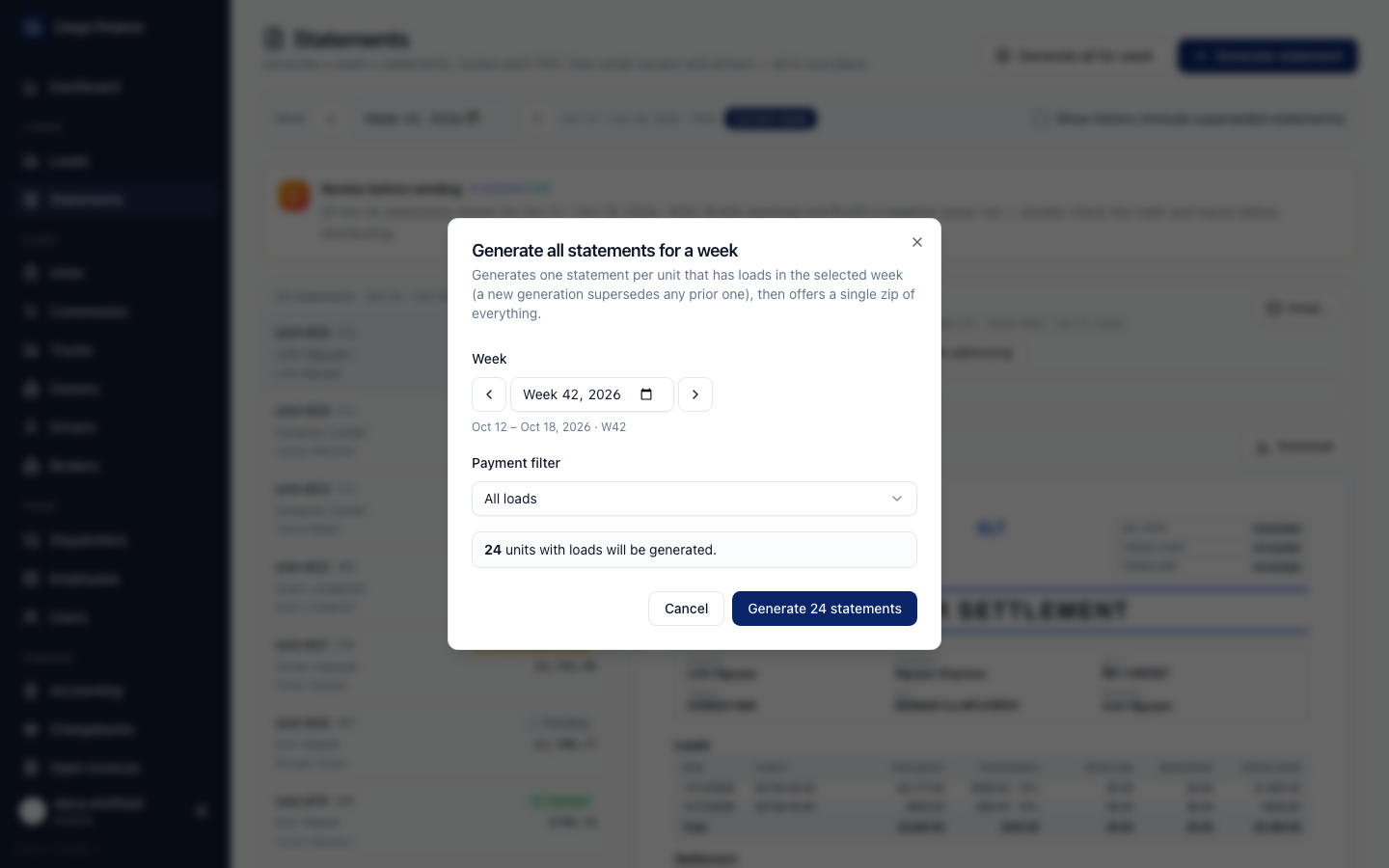
In Cargo Finance: Docs → Generate statements for a week; Docs → Review and send statements.
Manage a Unit and its weekly setup
- Open Units and pick the week.
- Select the pencil next to a unit. The panel is that unit's setup for this week: truck, owner, Commission, Driver salaries (this week), Drivers, Trailer rent, Fees & deductions.
- Add fee: name, dollars or percent, who pays it (owner or driver), Permanent or This week.
- Select Save week. Loads and statements use this setup.
- When the week is complete, select Close week. A closed week is read-only. Reopen week to make a correction, then close it again.
New unit and ⋯ → Edit defaults set the starting setup that new weeks copy.
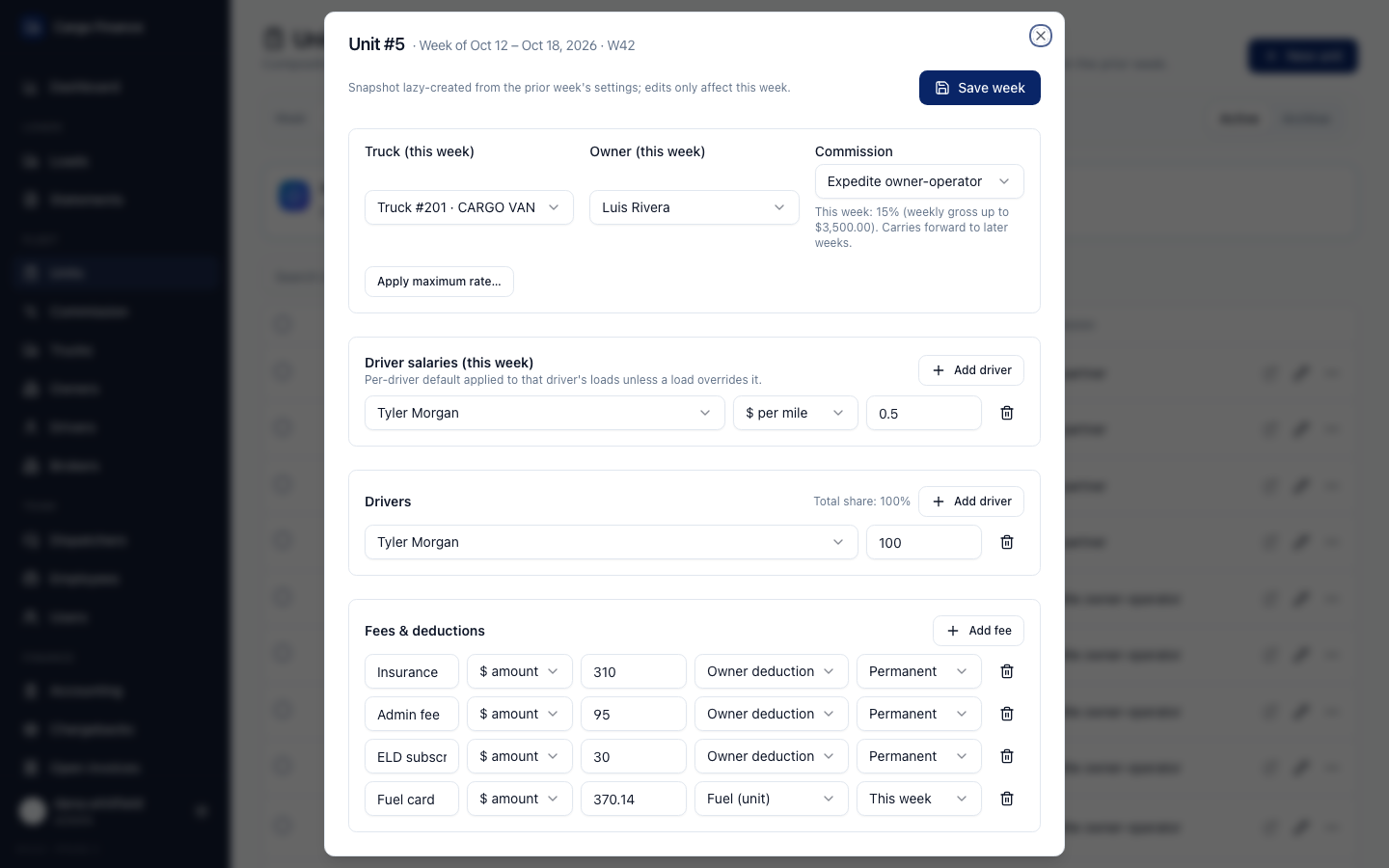
In Cargo Finance: Docs → Manage a Unit and its weekly setup.
Set up commission templates
- Open Commission under Fleet. The Default template prices every unit that has nothing else.
- Select New template, type a name and pick the week it starts.
- Company: percent of final gross, optionally + flat amount per load or per week.
- Add gross tiers to charge a different rate on a bigger week. Each tier has an upper limit; the last one covers everything above.
- Check In words and Try a week, then Save.
- Put a unit on the template in its weekly panel (Commission) or in Edit defaults.
- To change rates later use New version with the week the new rates start. Earlier weeks keep their rates.
The Weekly report tab shows each unit's week: weekly gross, the tier used, company and dispatcher commission. Export CSV downloads it.
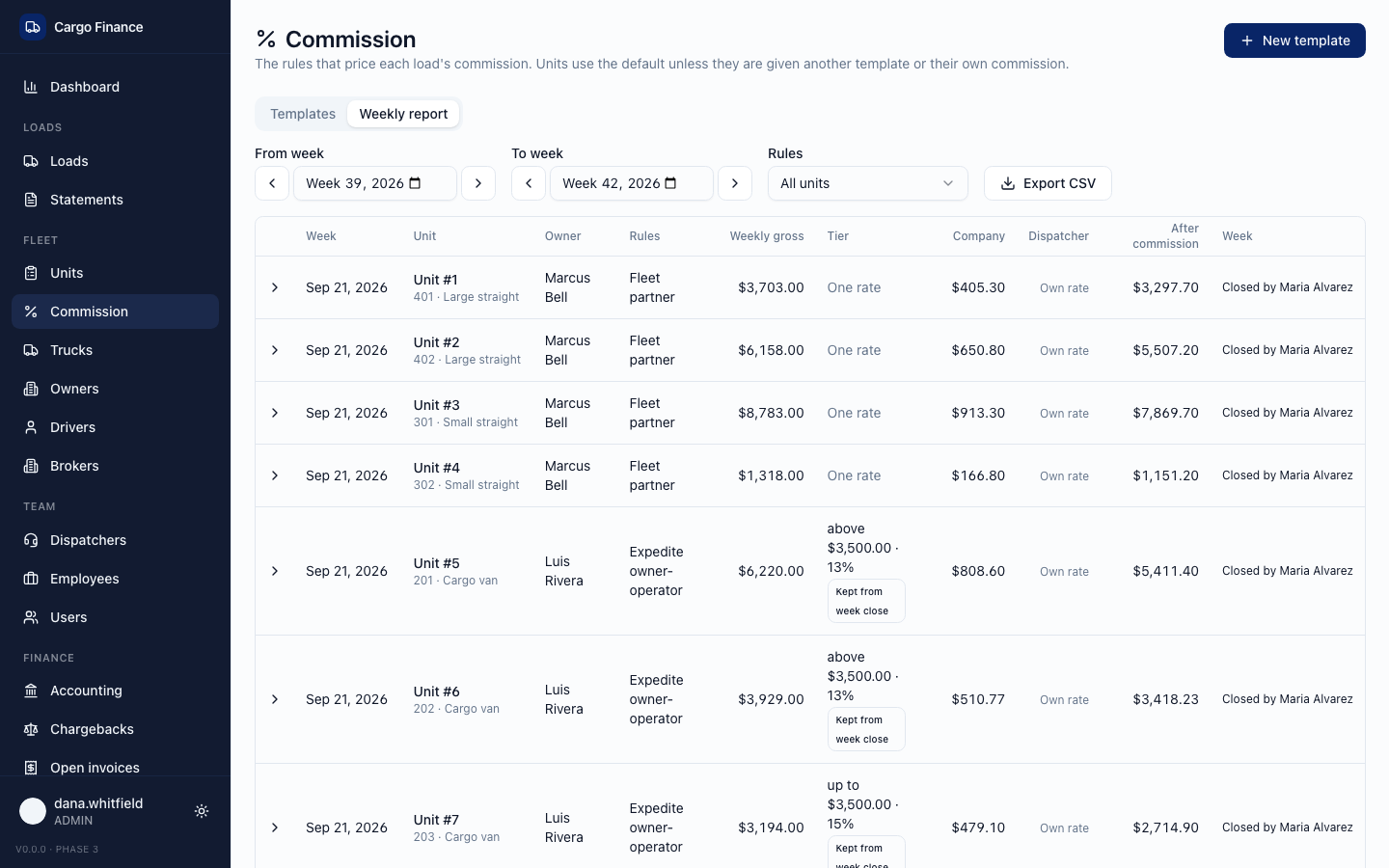
In Cargo Finance: Docs → Set up commission templates; Docs → Understand how commission is calculated.
Share a load between two dispatchers
- On Loads, open Columns, turn on Dispatcher and pin it to the left.
- Click the load's Dispatcher cell.
- Under Shared with, pick the second dispatcher and enter their share, for example 40.
- Select Save split. The cell shows both names and the share.
- On Dispatchers → View pay, each dispatcher sees their part of that load, for example "40% of $100.00".
To share every load on a unit, open the first dispatcher on Dispatchers, set Shared with next to that unit and select Save week. Remove keeps only the first dispatcher; Clear override sends the load back to the unit's dispatchers.
In Cargo Finance: Docs → Share a load between two dispatchers.
Set up dispatcher pay
- Open Dispatchers and pick the week.
- Select View pay. At the top is this week's setup: Pay % (of final gross) and Tied units (this week).
- Change the percent or Add unit, then Save week. The setup carries forward to later weeks.
- The Pay breakdown below lists every load, a subtotal for each week and the total for the chosen weeks.
New dispatcher adds a person to pay. It does not create a login; an administrator does that on Users.
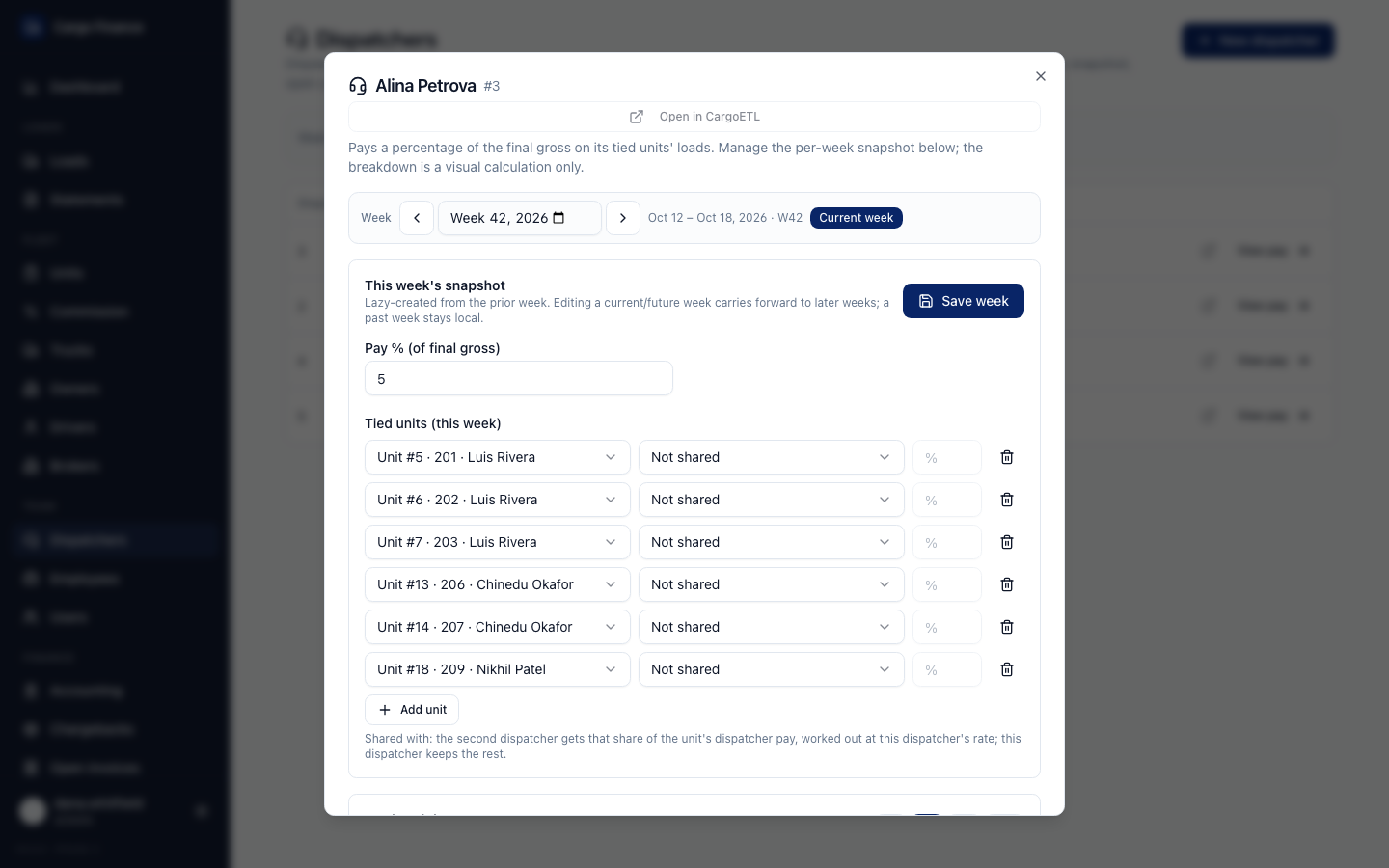
In Cargo Finance: Docs → Set up dispatcher pay.
Create a dispatcher payout
- Open Salaries, the Dispatchers tab, and the month.
- Select New payout, choose the Label (Advance or Final), tick the weeks it covers and select Create payout. A week can be in only one payout.
- Check each dispatcher's earned amount. Loads shows the loads behind it.
- Before paying, add a one-time bonus or fine with Bonus / fine.
- When the money goes out, select Unpaid, set the Paid date and select Mark paid. After the first payment the payout's weeks lock.
Office staff are on the Employees tab: two payments a month, Advance and Final, each half the monthly salary.
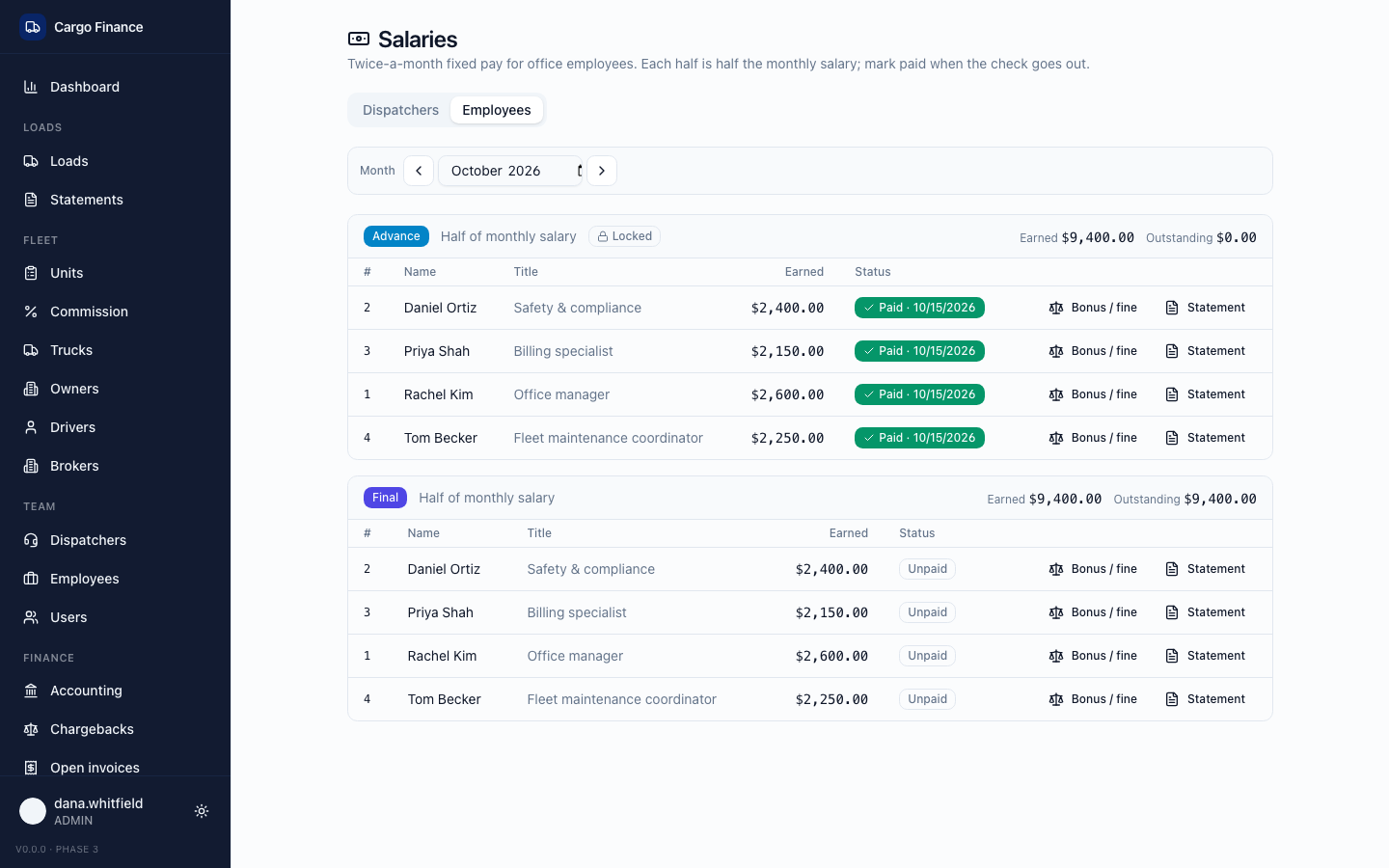
In Cargo Finance: Docs → Create a dispatcher payout; Docs → Record fixed-salary employee payments.
Track an open invoice
Use this when you billed a broker directly, without factoring, and are waiting for payment.
- Open Open invoices under Finance.
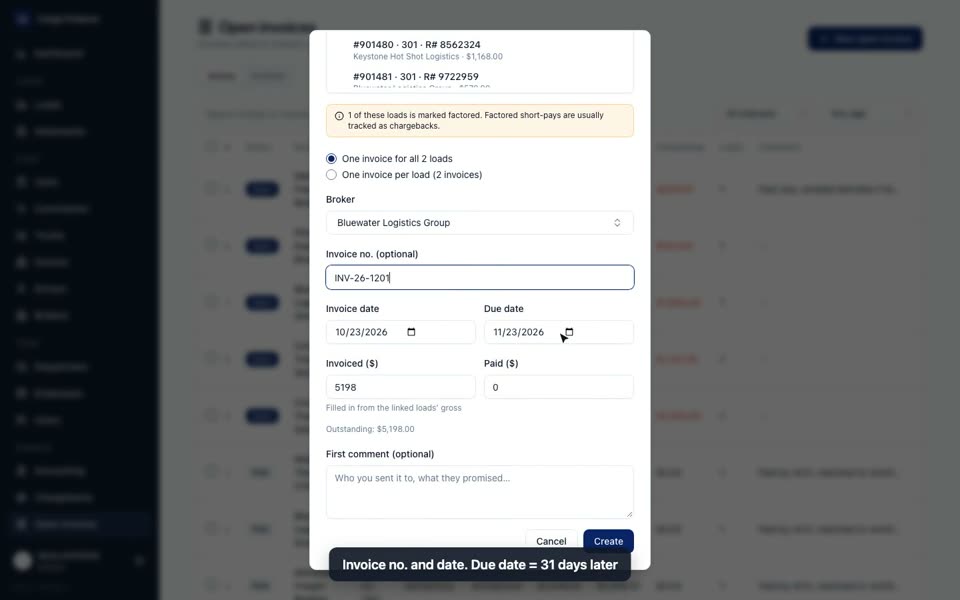
- Select New open invoice and Add loads…. The broker and Invoiced ($) fill in from the loads. With two or more loads choose One invoice for all loads or One invoice per load.
- Enter the Invoice no. and Invoice date. The Due date is set 31 days later; change it for other terms.
- Select Create. The invoice shows what is still outstanding. Cargo Finance warns you if a load is factored or already on another invoice.
- Use the age filter (Overdue, 1–30 days, 31–60 days, 61–90 days, 91+ days) to see who is late.
- When the broker pays: ⋯ → Open…, update Paid ($), Save invoice, and set the status to Paid. Written off if you stop chasing it.
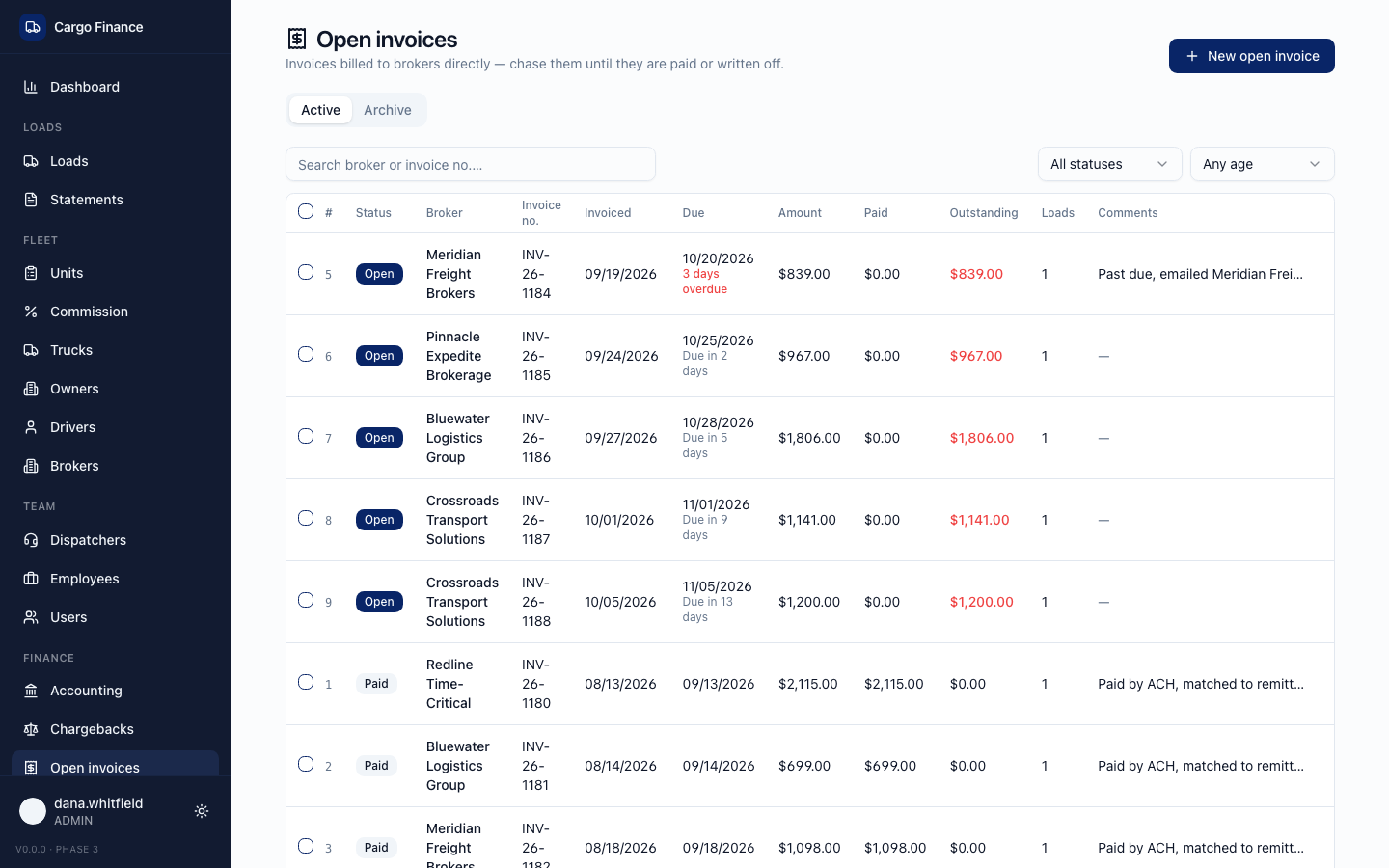
In Cargo Finance: Docs → Track an open invoice.
Track a broker chargeback
Use this when a broker paid less than expected after factoring.
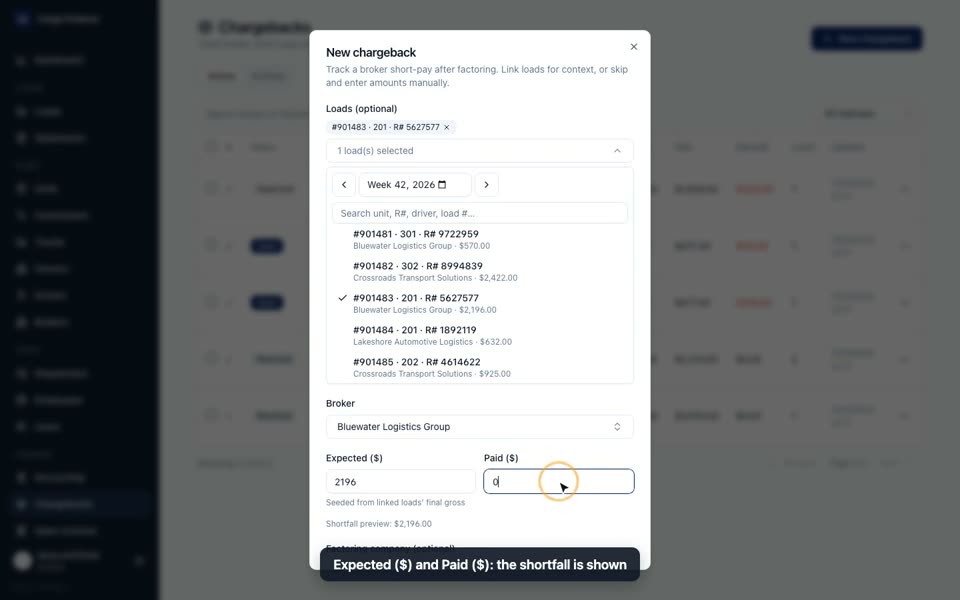
- Open Chargebacks under Finance and select New chargeback.
- Add loads…; the broker is suggested from them.
- Check Expected ($), enter Paid ($). The shortfall is shown.
- Add the factoring company and a first comment, then Create. The case starts as Open.
- Open the case to add comments and update amounts. Set Resolved when settled, Dead end when you stop.
A chargeback tracks the short-pay only; it does not change the loads.
In Cargo Finance: Docs → Track a broker chargeback.
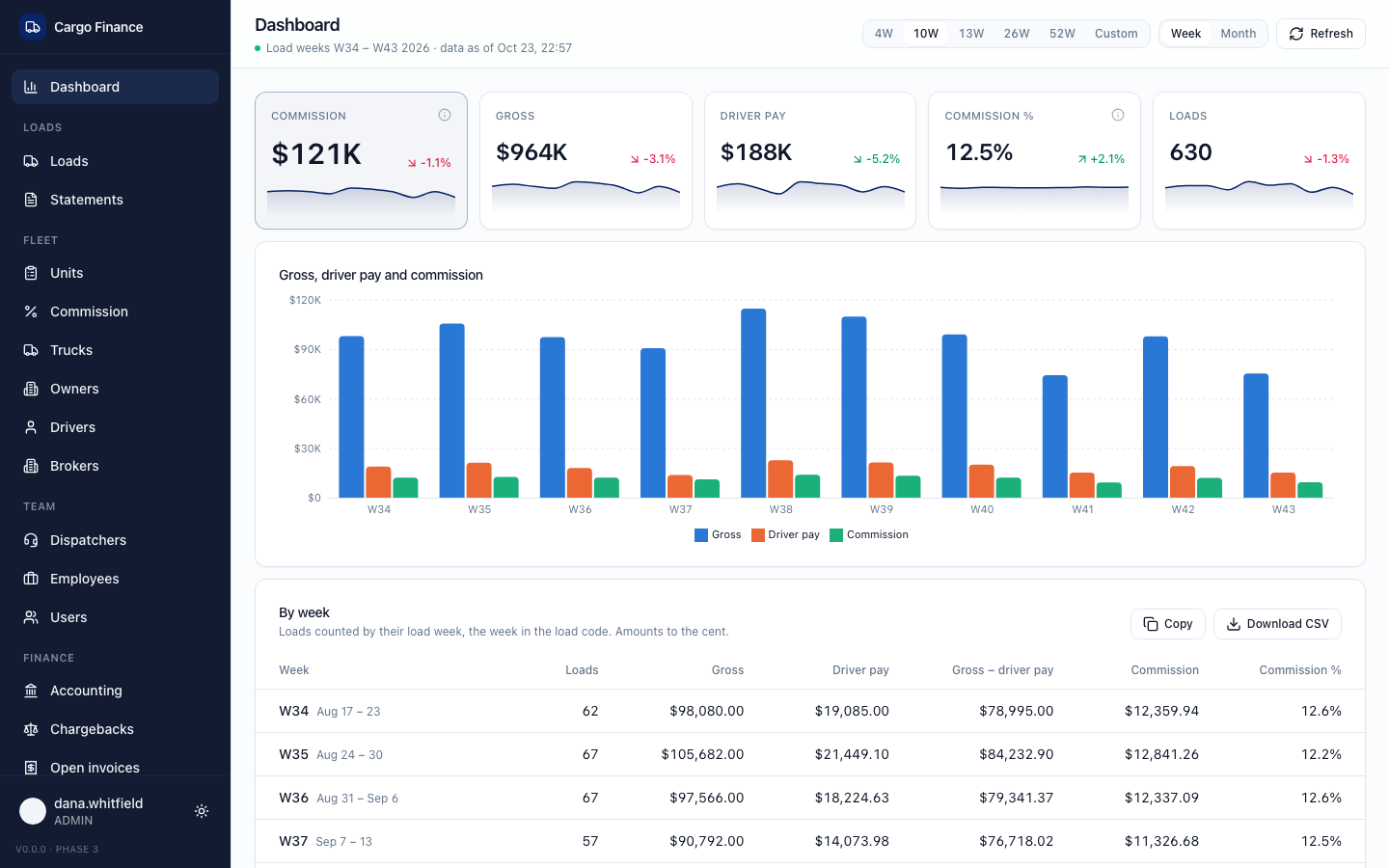
Read the weekly numbers on the Dashboard
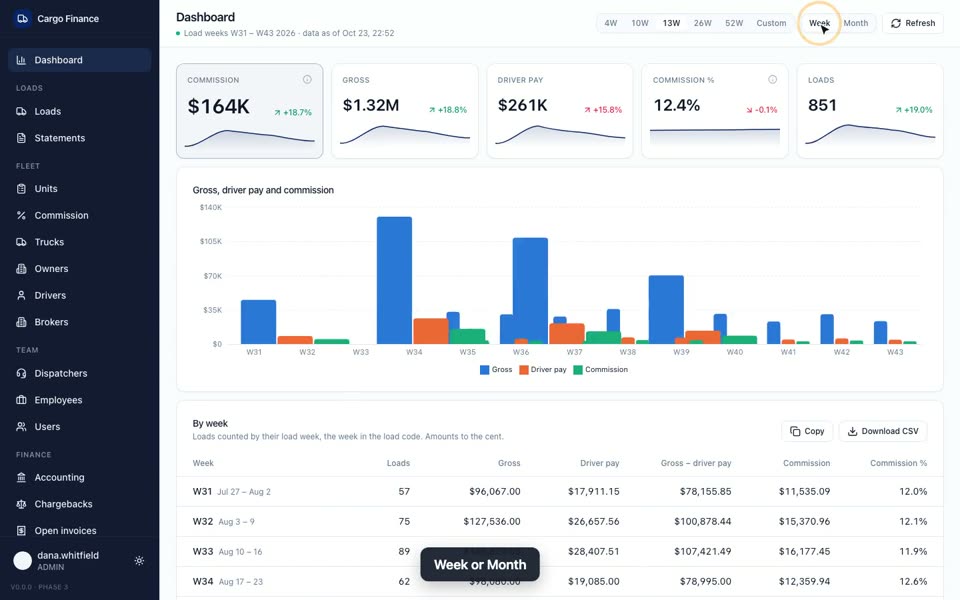
- Pick the range: 4W, 10W, 13W, 26W, 52W or Custom. Week or Month rows.
- The cards show loads, gross, driver pay, commission (or profit) and margin, with the change against the period before.
- The By week table is exact to the cent. Copy or Download CSV to check against NetSuite. Click a week to open its loads.
- Insights flags patterns such as an unpaid backlog. Breakdown compares Units, Owners, Dispatchers and Brokers.
- Needs attention cards (Aging unpaid > 7d, Awaiting paid approval, Awaiting factoring, Do not pay, Unlinked loads, Units without owner) open the matching loads.
Loads count in their load week, the week in the load code.
In Cargo Finance: Docs → Read the weekly numbers on the Dashboard; Docs → Check a week against NetSuite; Docs → Use Dashboard insights, breakdowns, and queues.
Download the NetSuite CSV
- On Loads, select Export.
- Pick the week. Check it: the window opens on its own week, which may differ from the one on the Loads page.
- Payment Filter: None, Quick Pay, Direct Payment or Both (OR).
- Optional: Only unpaid, Archived loads (excluded by default), brokers to exclude.
- Select Export. The file keeps the column order the NetSuite import expects.
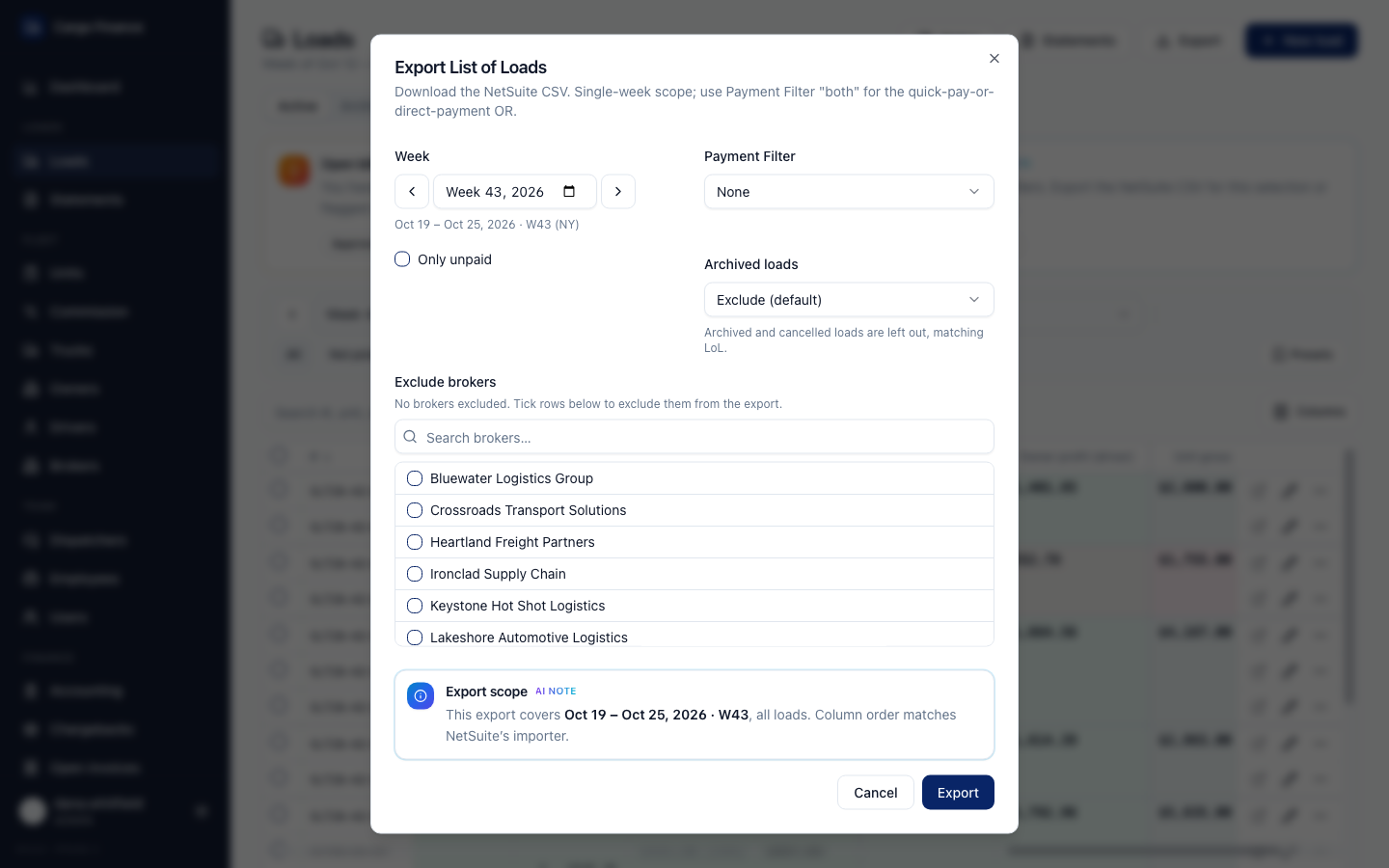
In Cargo Finance: Docs → Download the NetSuite CSV.
Manage company details and users
- Settings → Company info: Load code prefix, Full company name, logo, address, NetSuite class. Each card has its own save button.
- Driver pay source: Managed in Cargo Finance (pay rules set here) or From CargoETL (driver cost). A driver salary entered on a single load always wins.
- Statement email: subject and body sent with statements; placeholders such as
{{unit}}and{{week}}fill in. - Users → New user: login, initial password (Generate password, Copy password), name, contact email, Role. Deactivate blocks sign-in and keeps the person's history.
| Role | Can change |
|---|---|
| Admin | Everything, including users and settings |
| Accountant | Loads, fees, Mark paid, statements, fleet records, finance pages, closing weeks |
| Dispatcher | Loads and fees on the Loads page only |
| Assistant | Nothing; can view pages |
| Viewer | Nothing; can view pages |
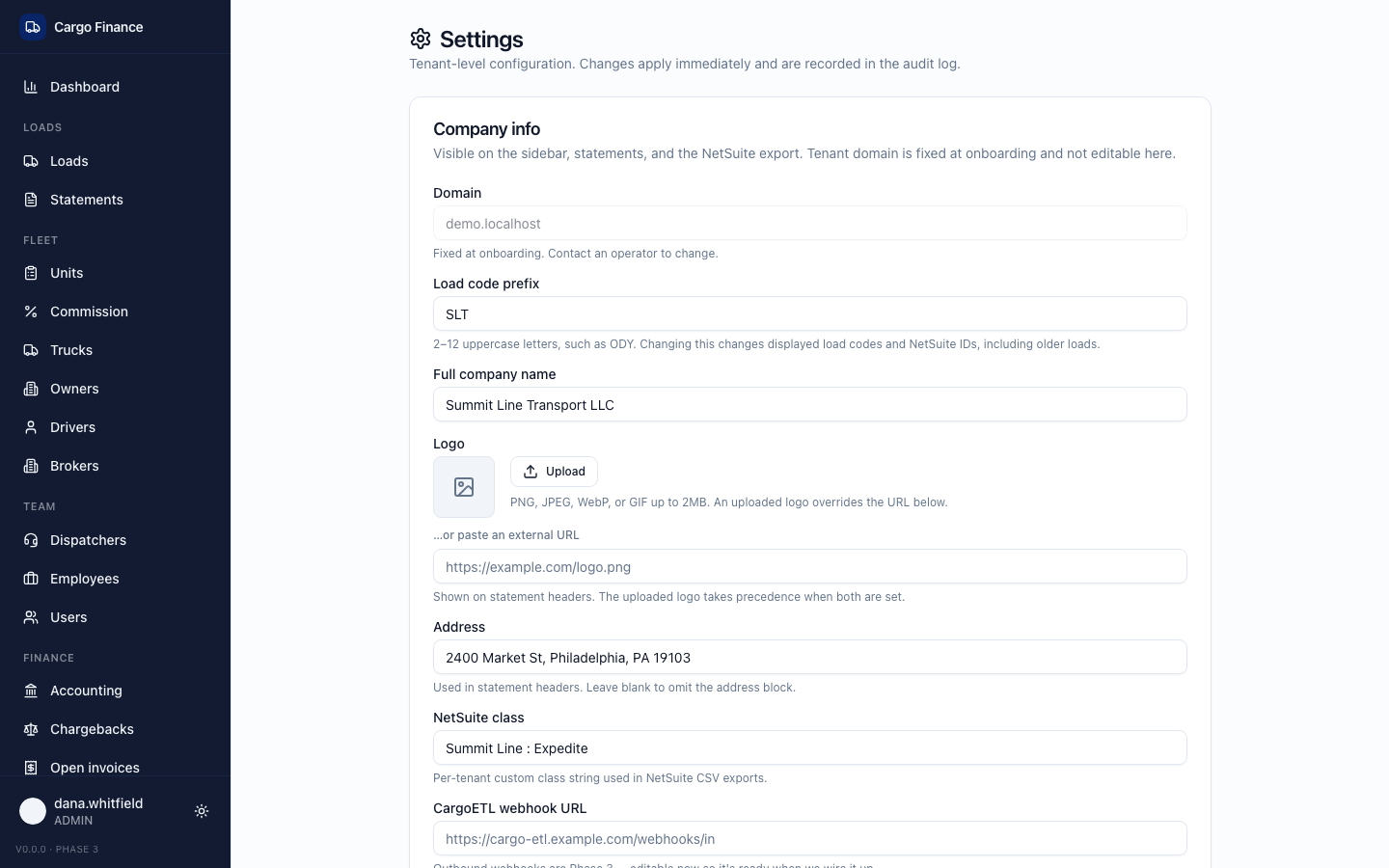
In Cargo Finance: Docs → Manage company details and driver pay source; Docs → Manage users and access; Docs → Customize the statement email.
Record fee collections and transfers
No video. Accounting keeps pass-through fees balanced: money collected from owners and sent to providers.
- Open Accounting and choose Admin fee, Insurance or Trailer rent.
- In Weekly collections, find the week and select Mark collected once the money is in. The amount is frozen as you marked it.
- When you pay the provider, select Record transfer: fee, amount, date, note.
- The balance card shows collected, transferred and what is left to transfer.
Trailer rent follows a unit while it has a trailer. Idle weeks are not billed alone; they are added to the unit's next driving week (Active, Accruing, Returned).
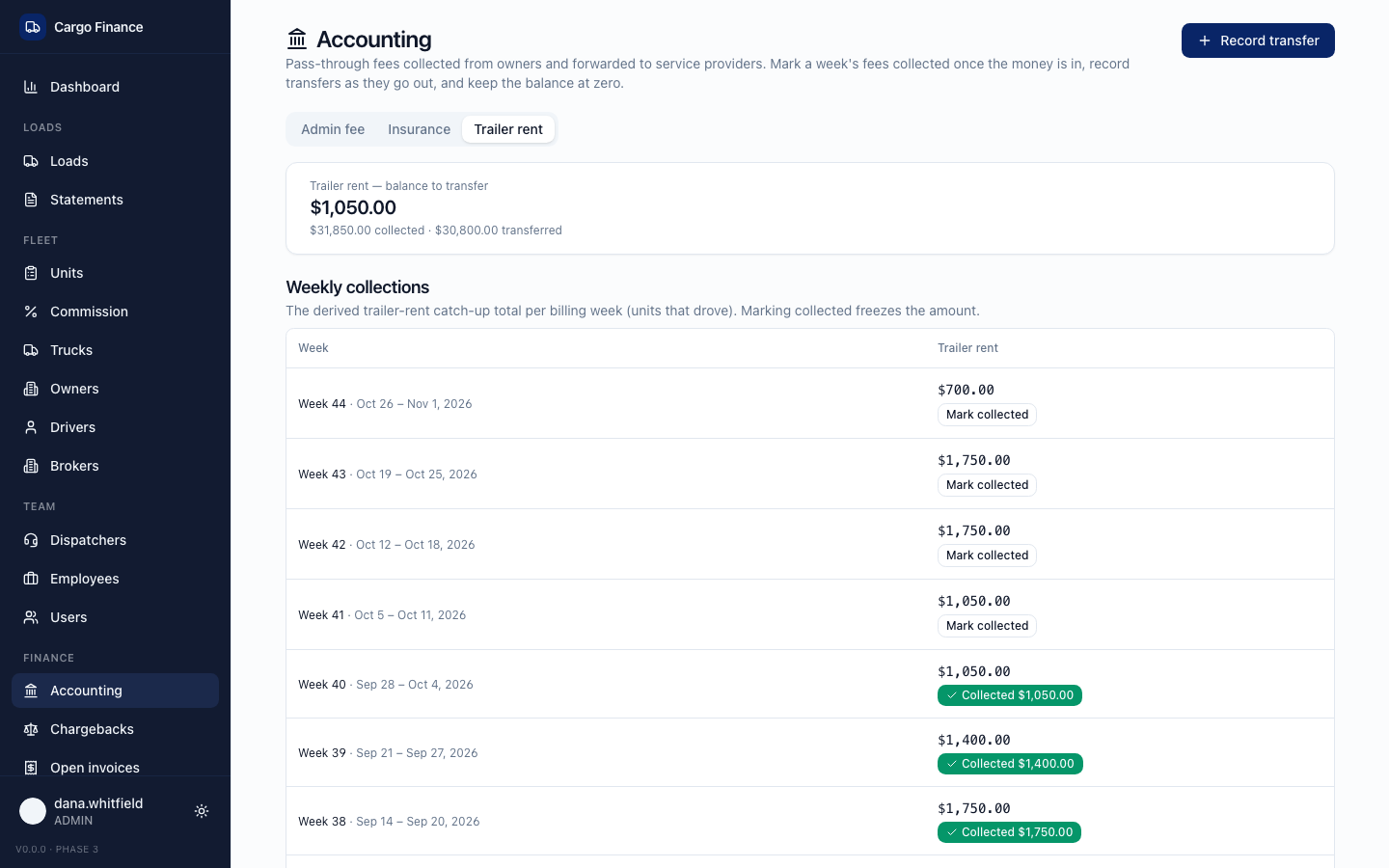
In Cargo Finance: Docs → Record fee collections and transfers; Docs → Understand trailer rent.
Manage owners, drivers, trucks, and brokers
No video. Open the Fleet page and select New owner, New driver, New truck or New broker; ⋯ → Edit to correct. Archive hides a record from pickers and keeps history; Restore from the Archive tab. Search the Active and Archive tabs first to avoid duplicates. Administrators can bulk-add brokers with Import from NetSuite on Brokers.
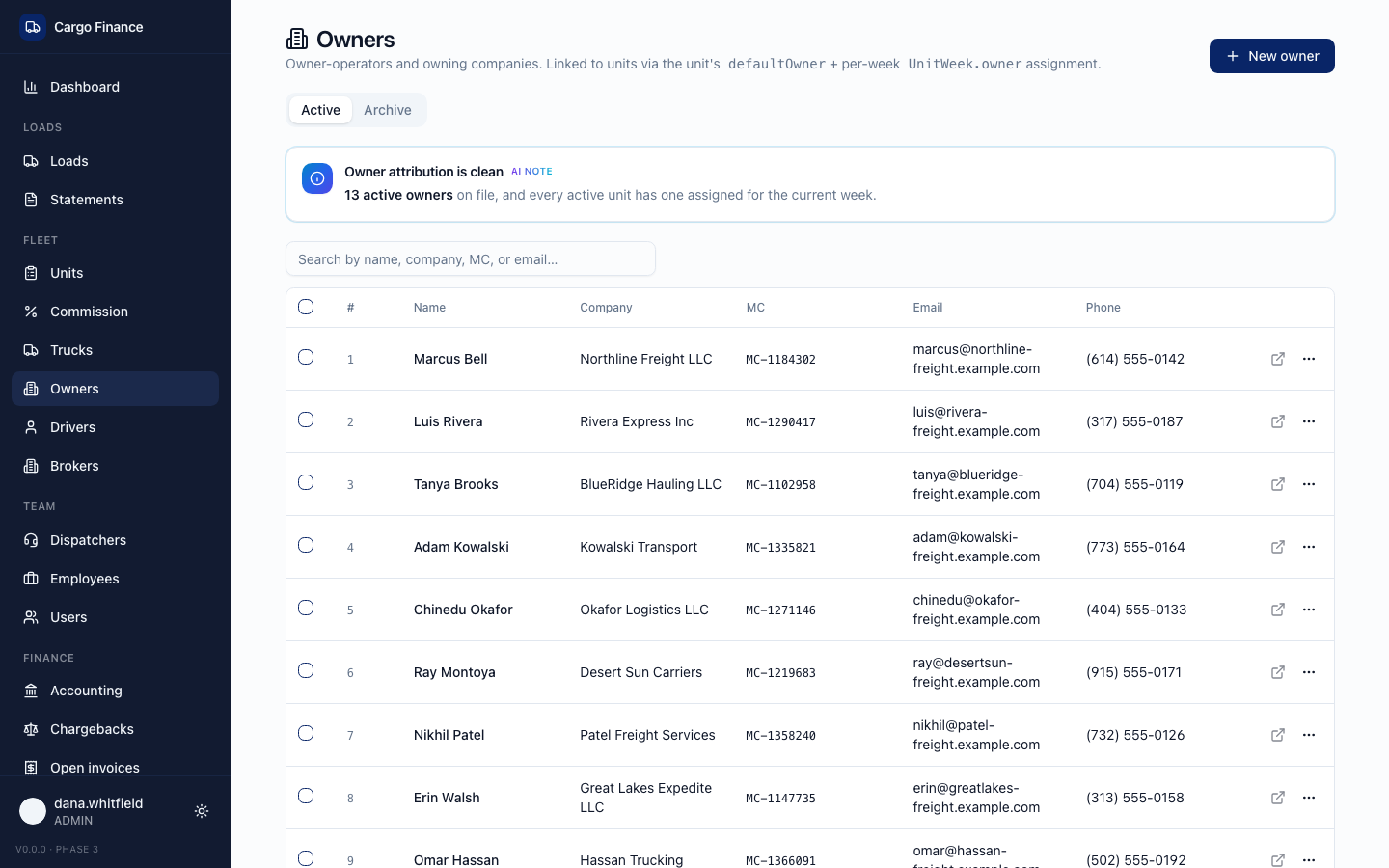
In Cargo Finance: Docs → Manage owners, drivers, trucks, and brokers; Docs → Understand Units, trucks, owners, and drivers.
Handle statement replies in Inbox
No video. When an owner or driver replies to a statement email, the conversation appears in Inbox under Needs response. Read the thread, check the statement and loads, write a reply and select Send reply; the conversation moves to Waiting on recipient. Resolve (or Close) with a short note when it is settled. Inbox needs a shared address set up by an administrator in Settings → Email inbox.
In Cargo Finance: Docs → Handle statement replies in Inbox; Docs → Reply to and resolve inbox conversations.
Find help in Docs
No video (shown at the end of the overview). Select Docs near the bottom of the sidebar, type a question in plain words, or browse the cards under How can we help?. Open this page jumps to the page the article describes.
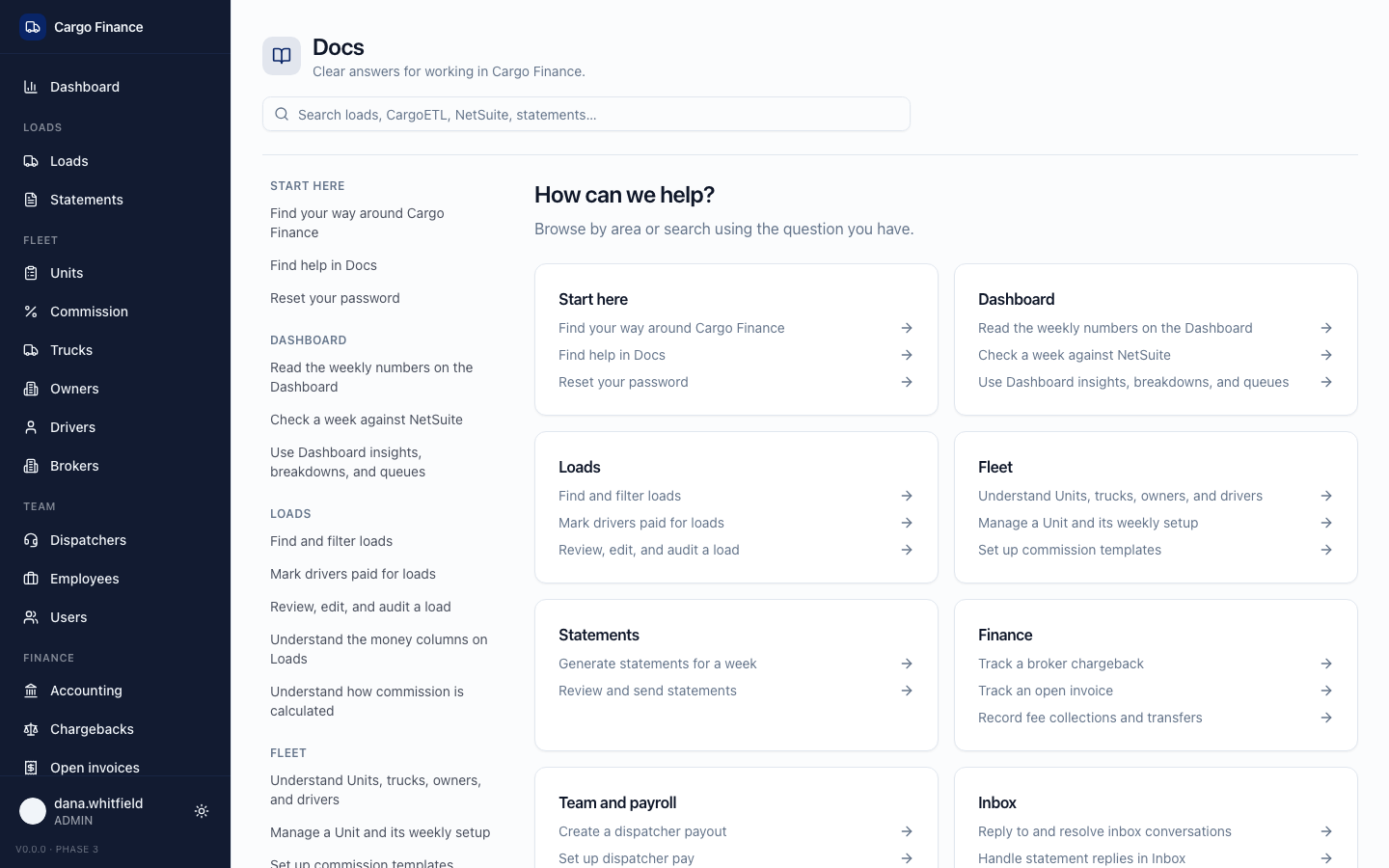
In Cargo Finance: Docs → Find help in Docs.
FAQ
Why don't I see a page a coworker has?
The sidebar shows only the pages your role and your company's features allow. Ask an administrator whether your role should have it. Some pages (Commission, Open invoices, Statements, Accounting, Salaries, shared loads, NetSuite sending, Copilot) are switched on per company by Cargo Finance support.
Does "Paid" mean the broker paid us?
No. Paid on Loads means the driver was paid for the load. Broker payments are tracked through factoring flags, Open invoices and Chargebacks.
Does Mark paid update Quick Pay in CargoETL?
No. It is saved only in Cargo Finance. Update CargoETL separately if your team relies on it there.
Why is Owner profit different from LoL's Profit?
LoL's Profit was Gross minus the CargoETL driver cost. Owner profit also takes off lumper, commission, driver adjustments and owner fees. Hover the value to see the breakdown.
Why did every load of a unit change commission after one edit?
With gross tiers, the rate depends on the unit's whole weekly gross. Adding or changing one load can move the whole week to another tier. A closed week keeps the tier it had when it was closed.
What does a closed week mean?
Its units, fees and dispatcher pay are read-only. An administrator or accountant can Reopen week, correct it and close it again.
Where do loads come from? Can I create one here?
Loads come from CargoETL automatically, and later CargoETL edits update them. New load on Loads exists for exceptions, but dispatch facts belong in CargoETL.
A load disappeared. Where is it?
Check the Archive tab on Loads: loads deleted in CargoETL or LoL are archived there, not destroyed. Also check you are on the right week. ⋯ → Restore brings a load back.
Are load codes the same as in LoL?
Yes. While your company still uses LoL, both show the same code for the same load. Search finds a load by its current or former code.
Can I see who changed a number?
Yes: ⋯ → Change history on the load. Updates that arrived from CargoETL are not listed there.
All videos (15)
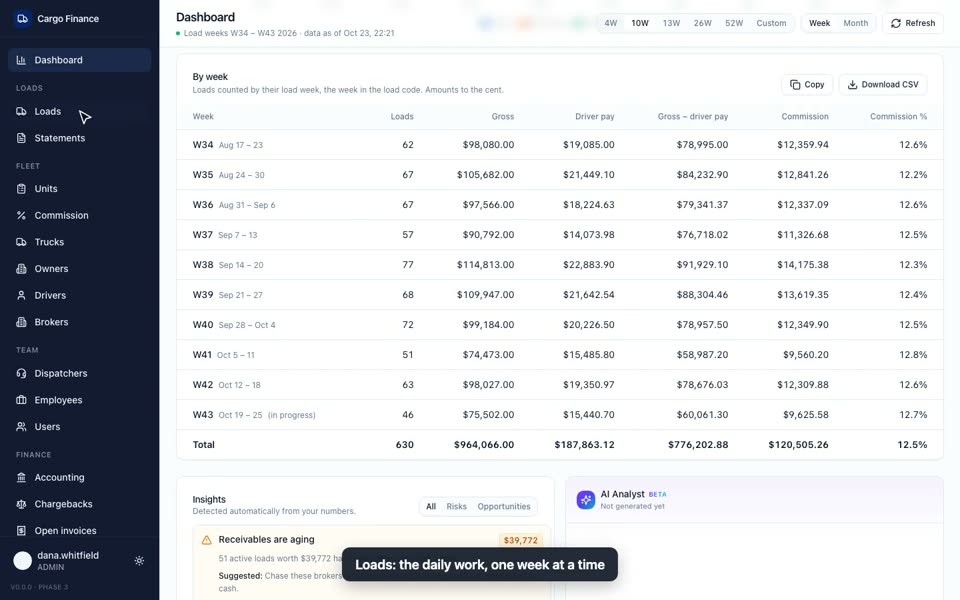 Cargo Finance overview1:15
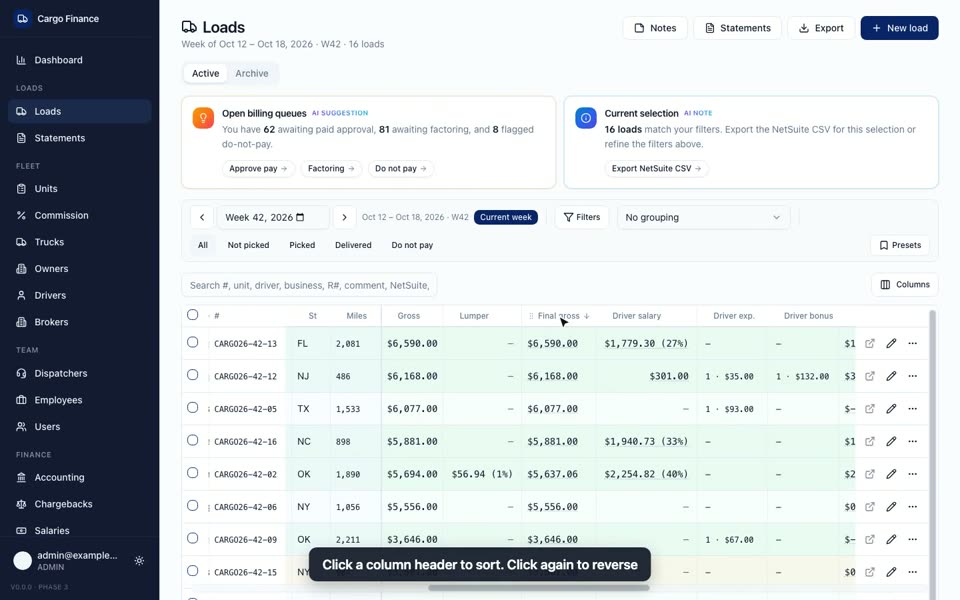 Loads: the weekly table0:56
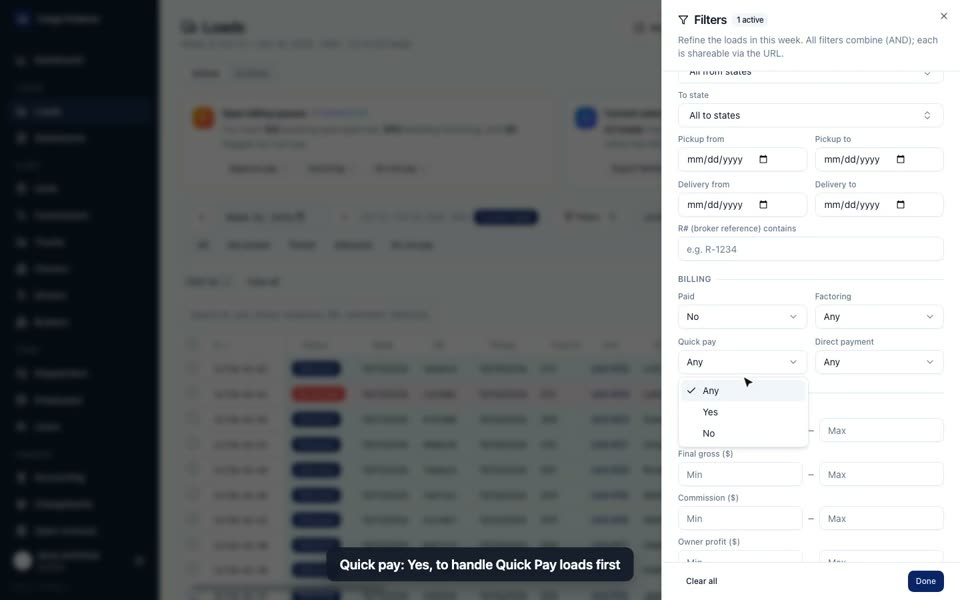 Mark drivers paid0:46
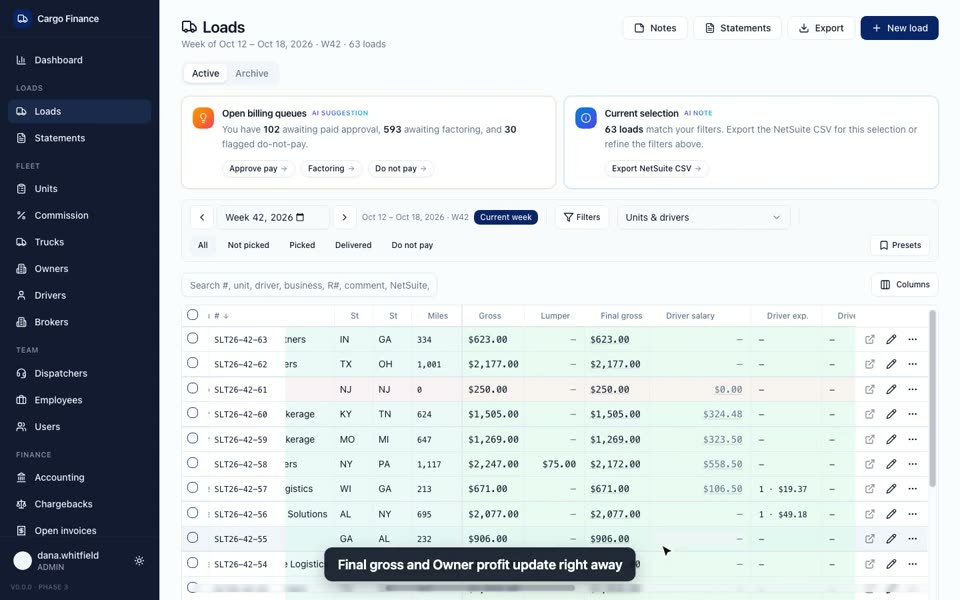 Check and fix a load0:44
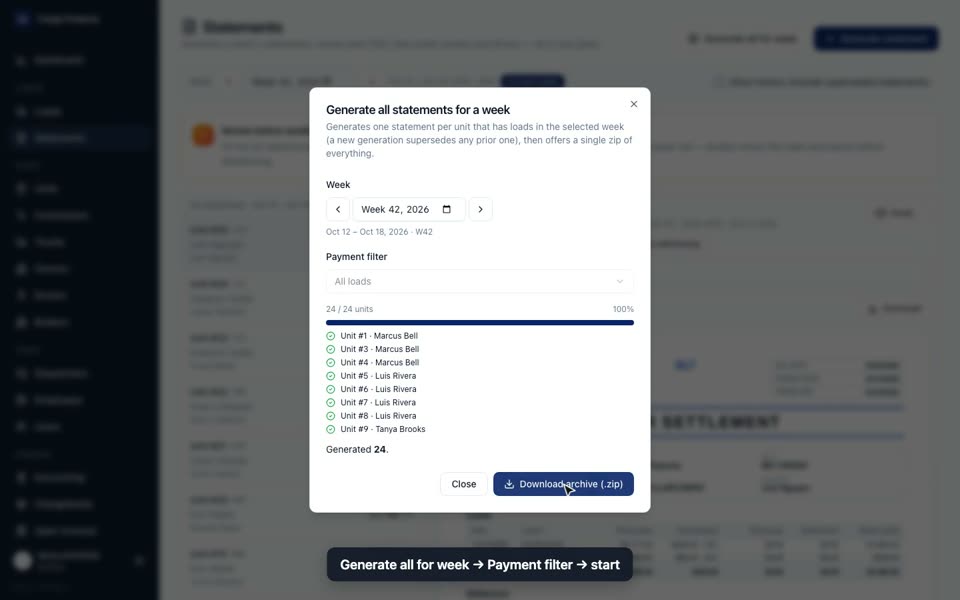 Statements1:03
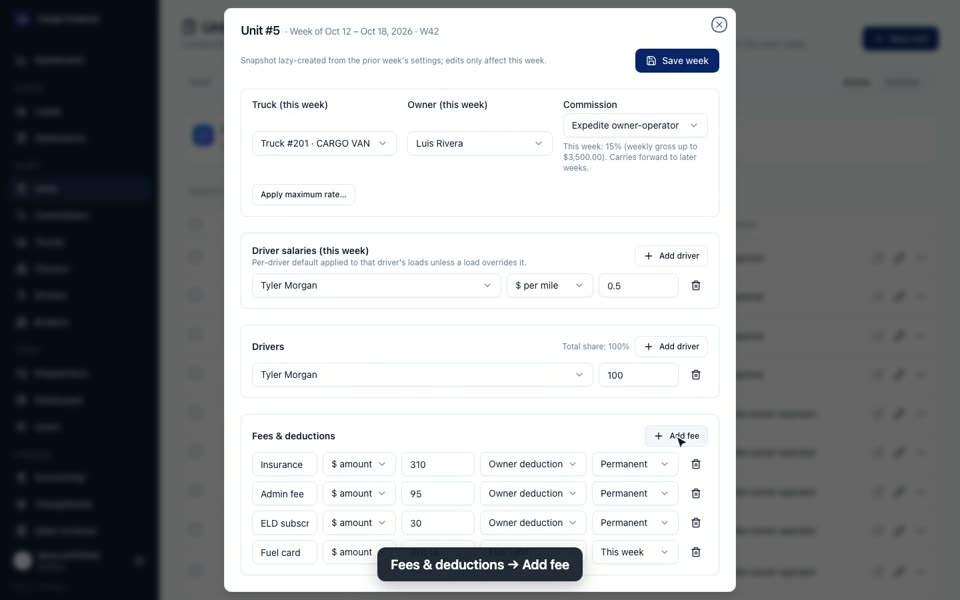 A unit's week0:53
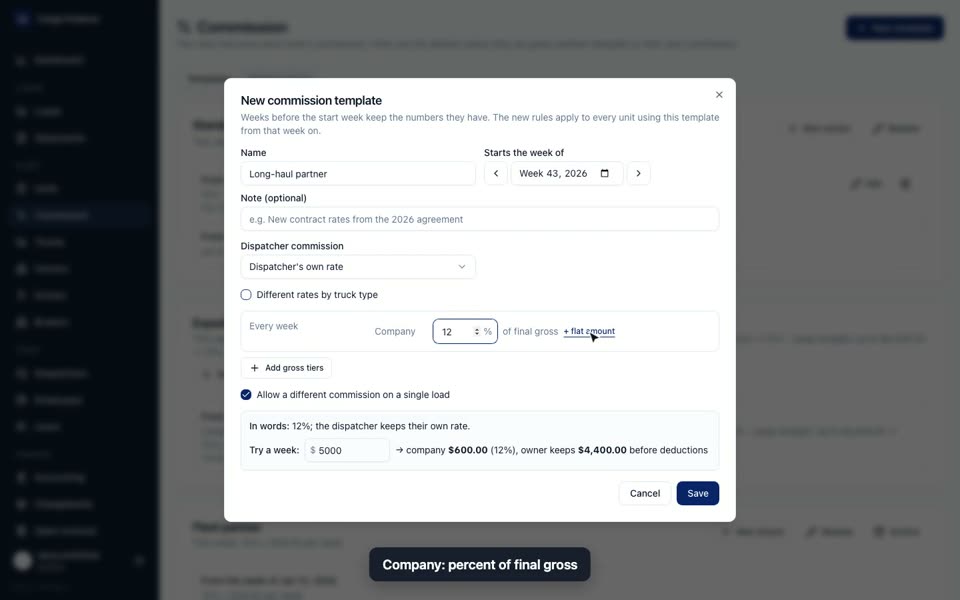 Commission templates0:51
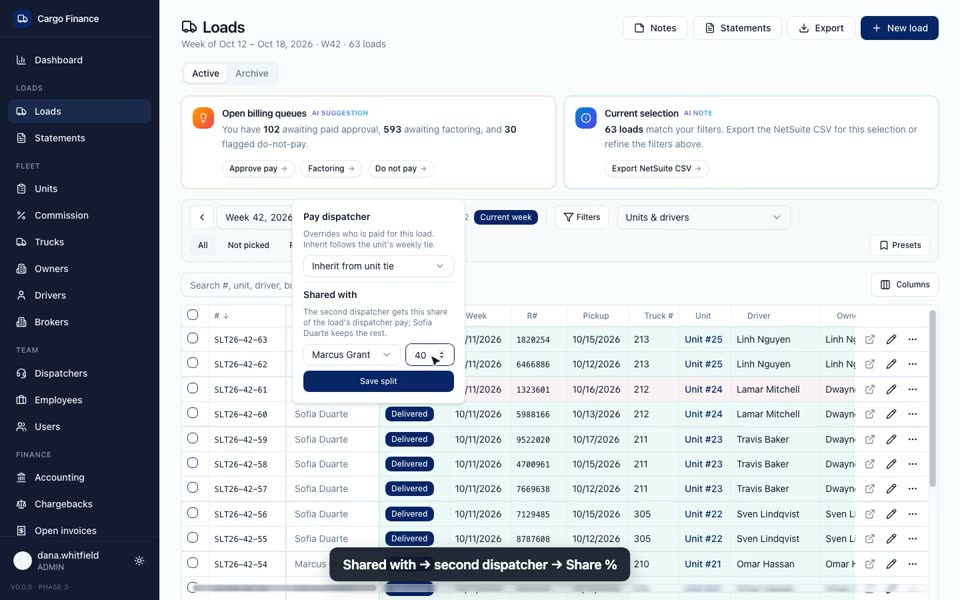 Split a load between dispatchers0:46
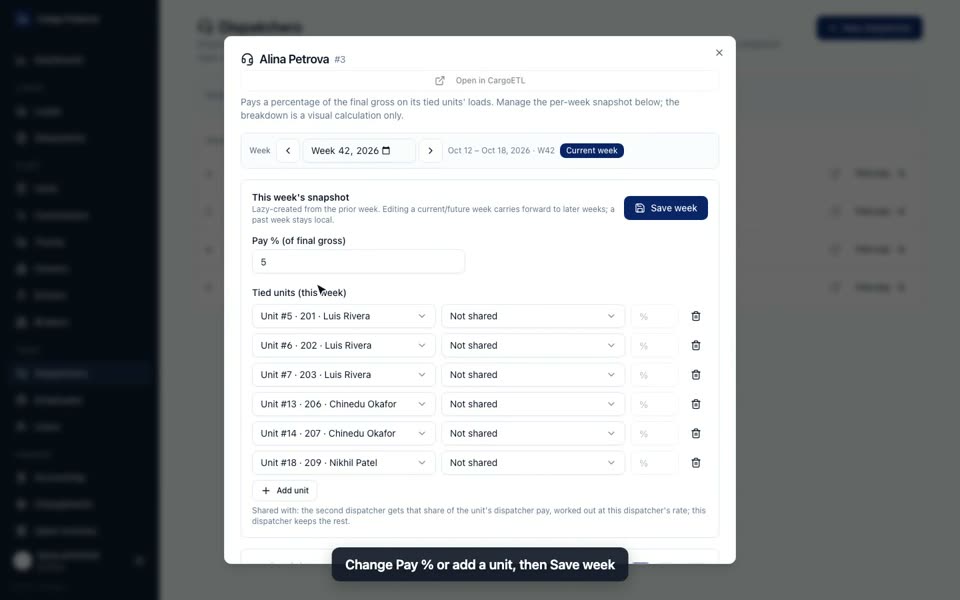 Dispatcher pay0:43
 Dispatcher payouts0:49
 Open invoices (receivables)0:57
 Chargebacks0:45
 Dashboard report0:48
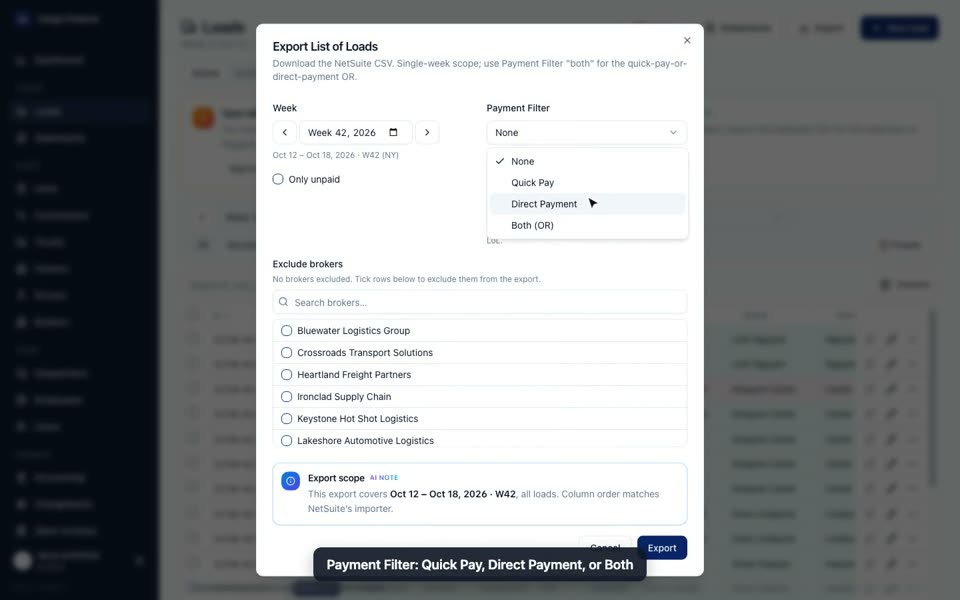 NetSuite CSV export0:33
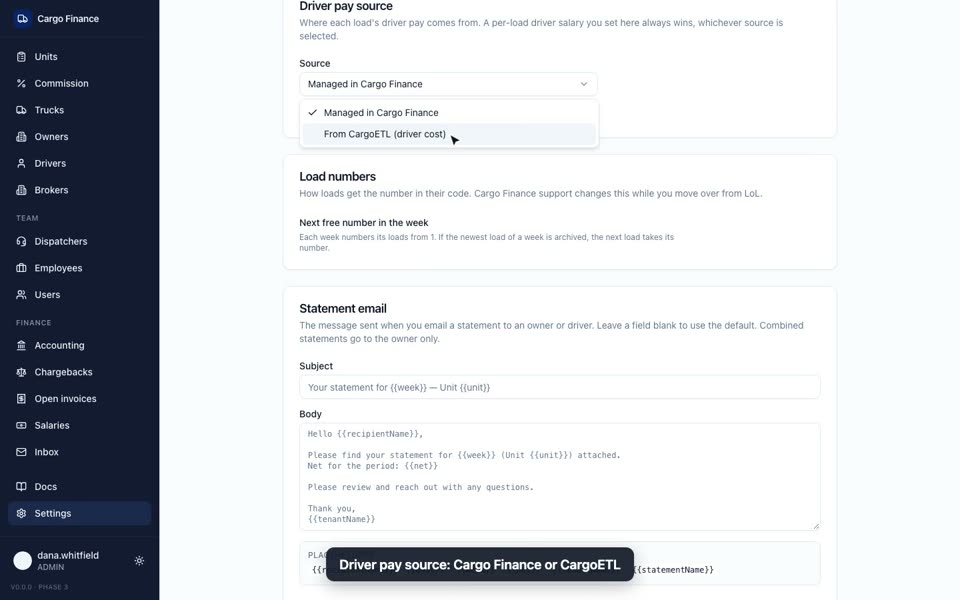 Settings and users0:45